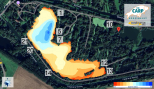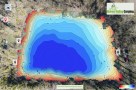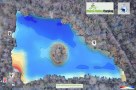
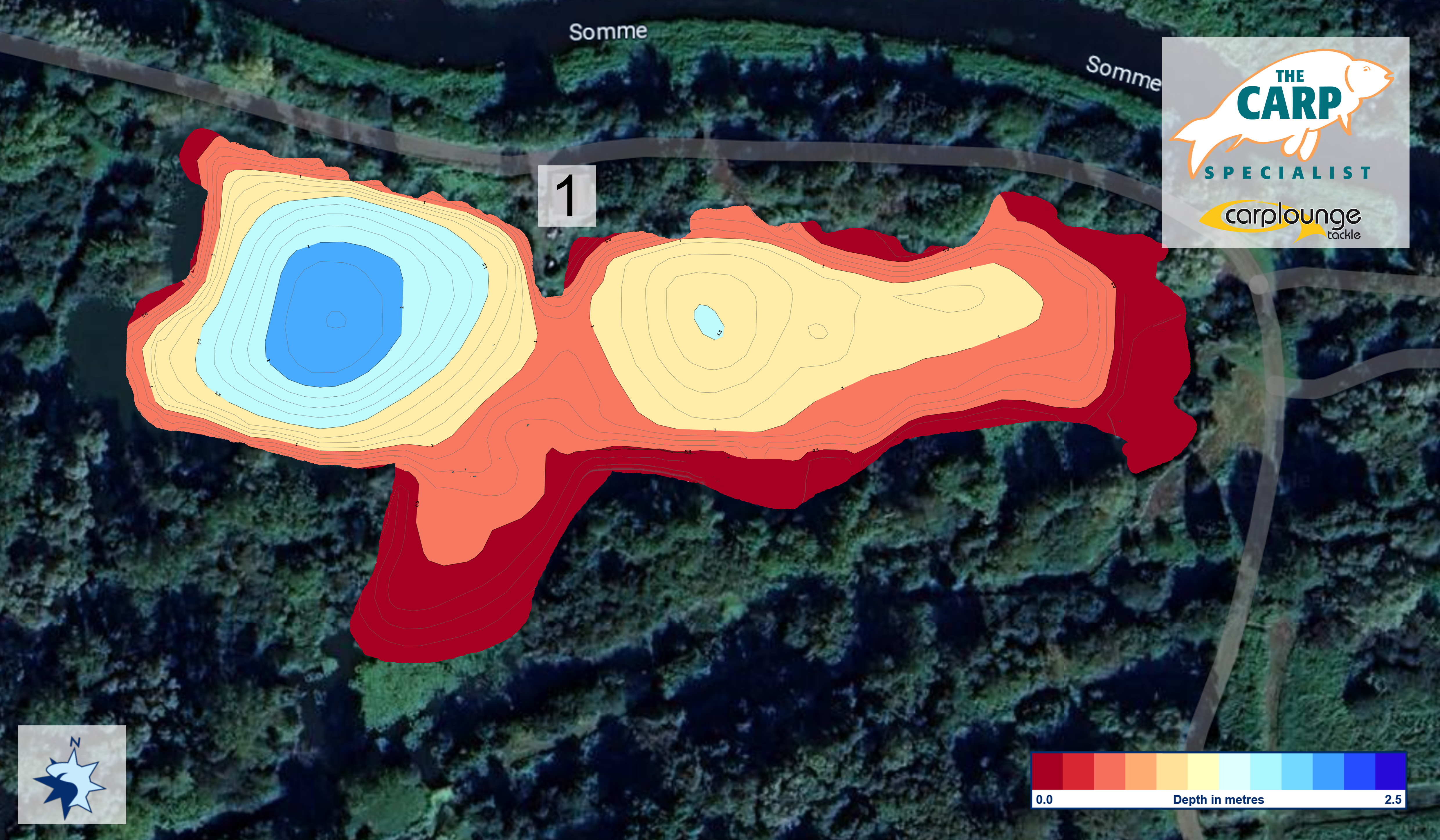


Good preparation is key. That certainly applies to carp fishing! After all, what is actually happening beneath the water's surface? Where are those interesting slopes, deeper channels, plateaus, and other spots that might be attractive to carp? With the detailed depth maps from Depthmaps, you get a much better picture of the water you are going to fish. By installing these maps directly on the tablet of your P.K. Baitboat, you have valuable information at your fingertips while fishing.
This allows you to identify interesting depth variations, better justify your choice of spot, and deploy your bait boat more effectively. Whether you are discovering a new pay-to-fish lake or want to approach a familiar spot from a different angle: a good depth map helps you fish more consciously and efficiently.
And the best part is: the installation is easier than you might think!
In this manual, we will walk you through it step by step. Within a few minutes, you can have your purchased depth map on your bait boat's tablet and be ready to explore the water further. 1. What do you need
- Before we begin, it is helpful to have everything ready. For the installation, you only need three things:
- A laptop or computer: in this manual, we use a Windows laptop.
- A P.K. Baitboat tablet: compatible with the GPS Autopilot system.
- A USB-C cable: to connect the tablet to your laptop. Preferably use a cable that also supports data transfer.
In addition, you will of course need the depth map that you purchased via Depthmaps.
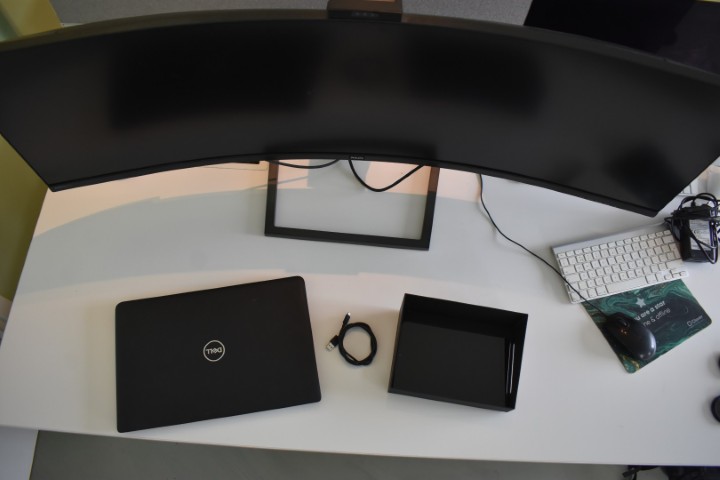
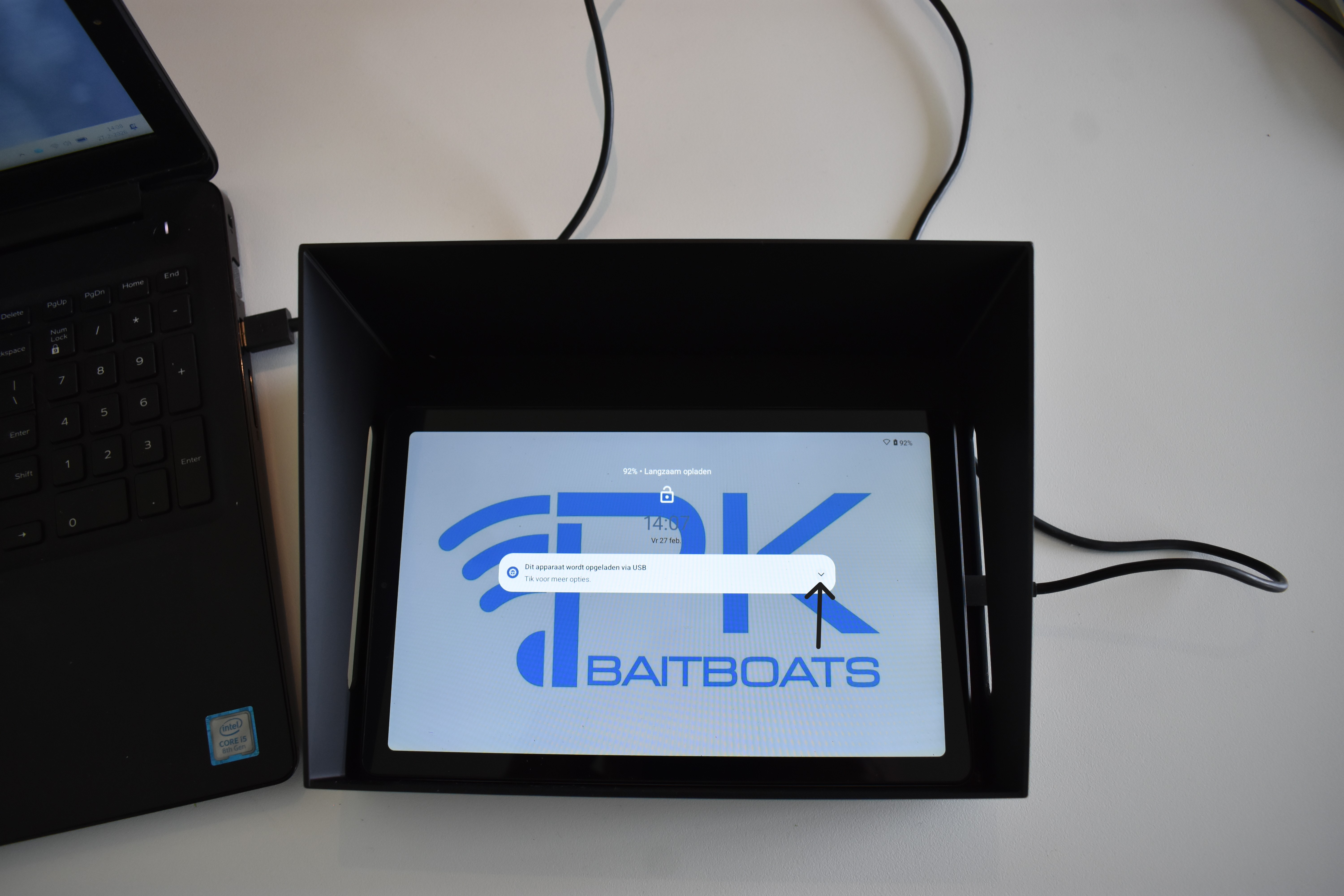 |
2. Connect your P.K. Baitboat tablet to the laptop We start by connecting your tablet. Step 1 – Connect the tablet Turn on both your laptop and your P.K. Baitboat tablet. Next, connect both devices with the USB-C cable. A message will normally appear on your tablet screen: ‘This device is charging via USB. |
|
|
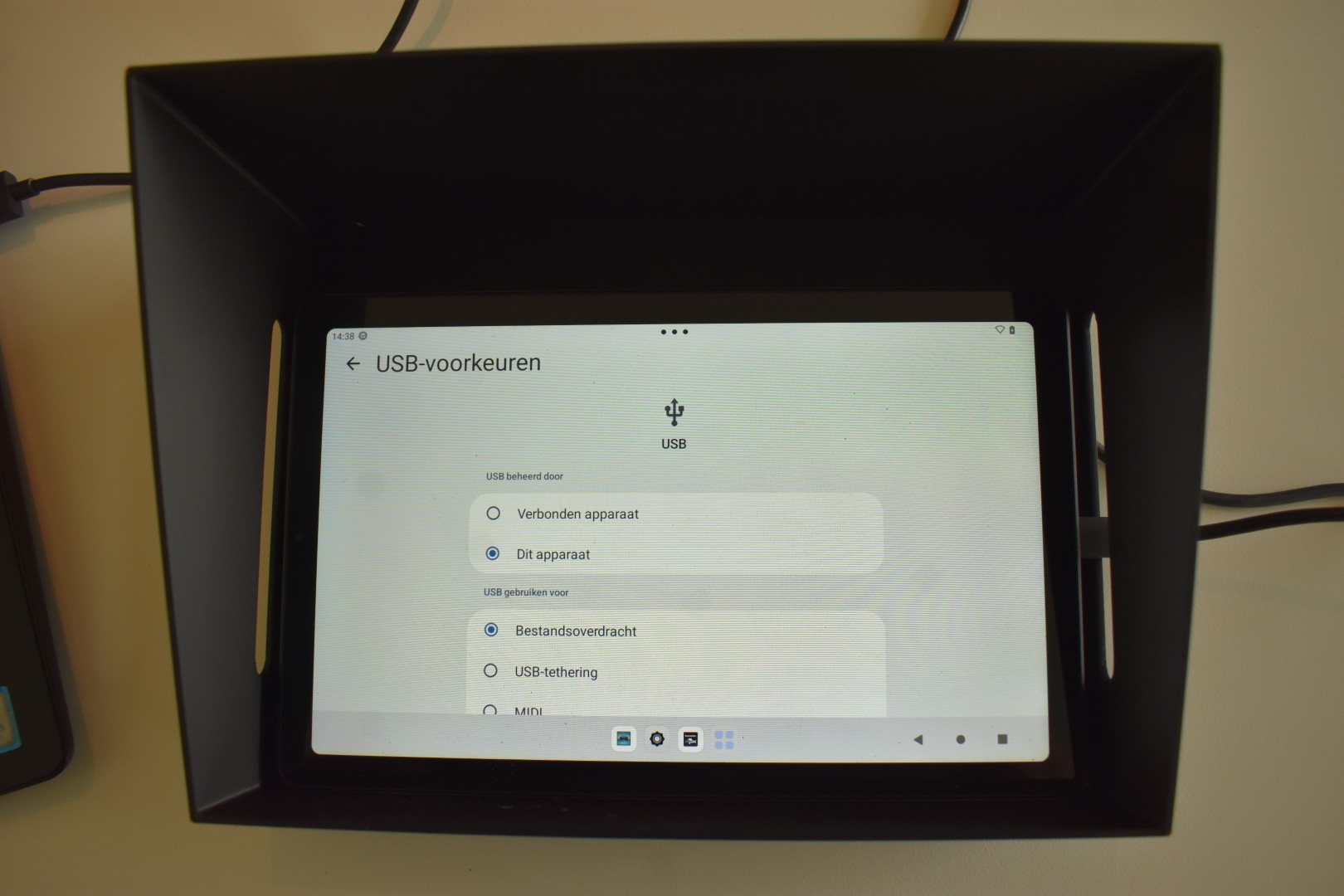
Step 2 - Enable file transfer Tap the arrow to the right of the notification. A menu will appear where you can specify what the USB connection should be used for. Under ‘Use USB for’, select the ‘File transfer’ option. This grants your laptop permission to view and transfer files on the tablet. |
 |
|
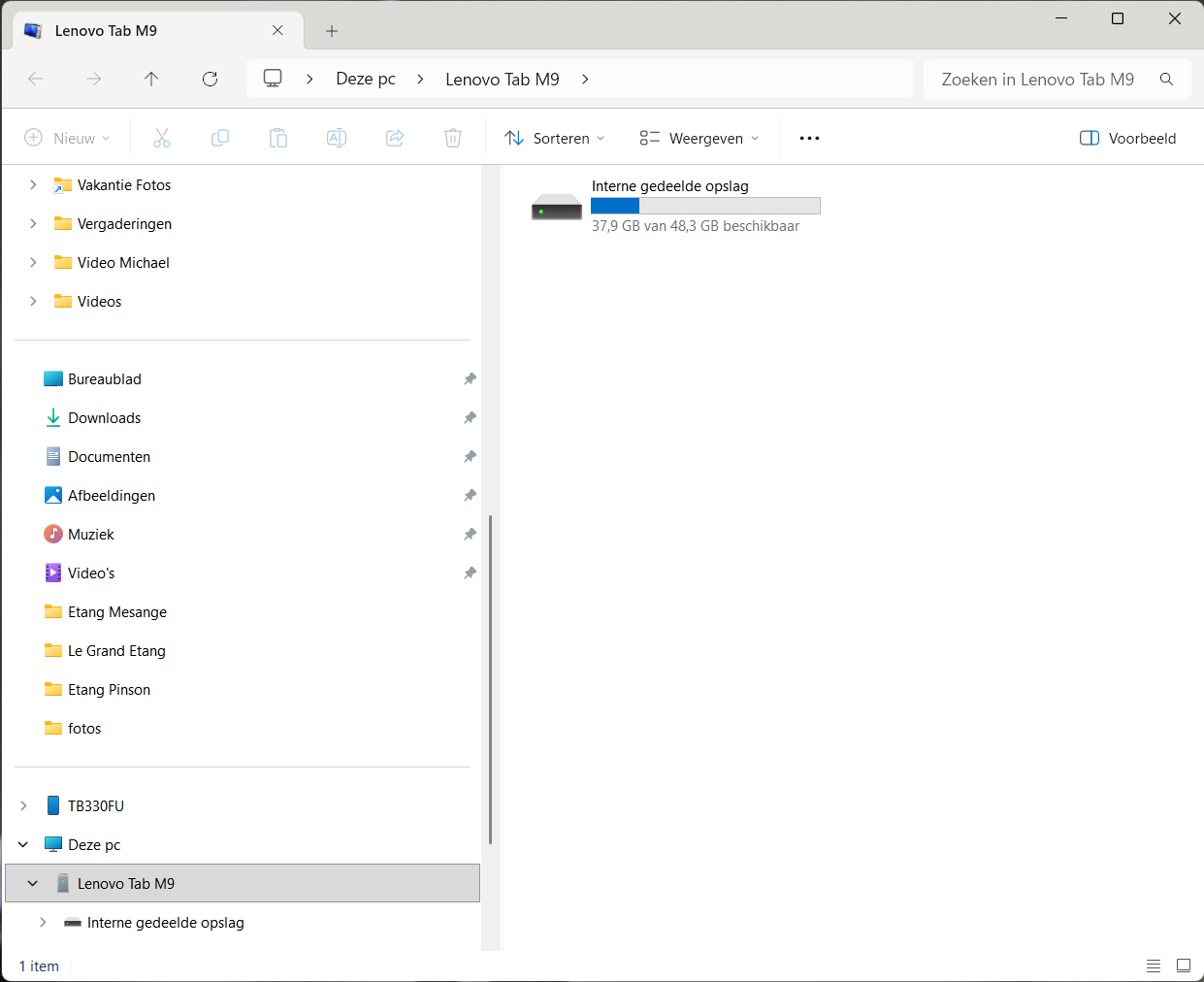 |
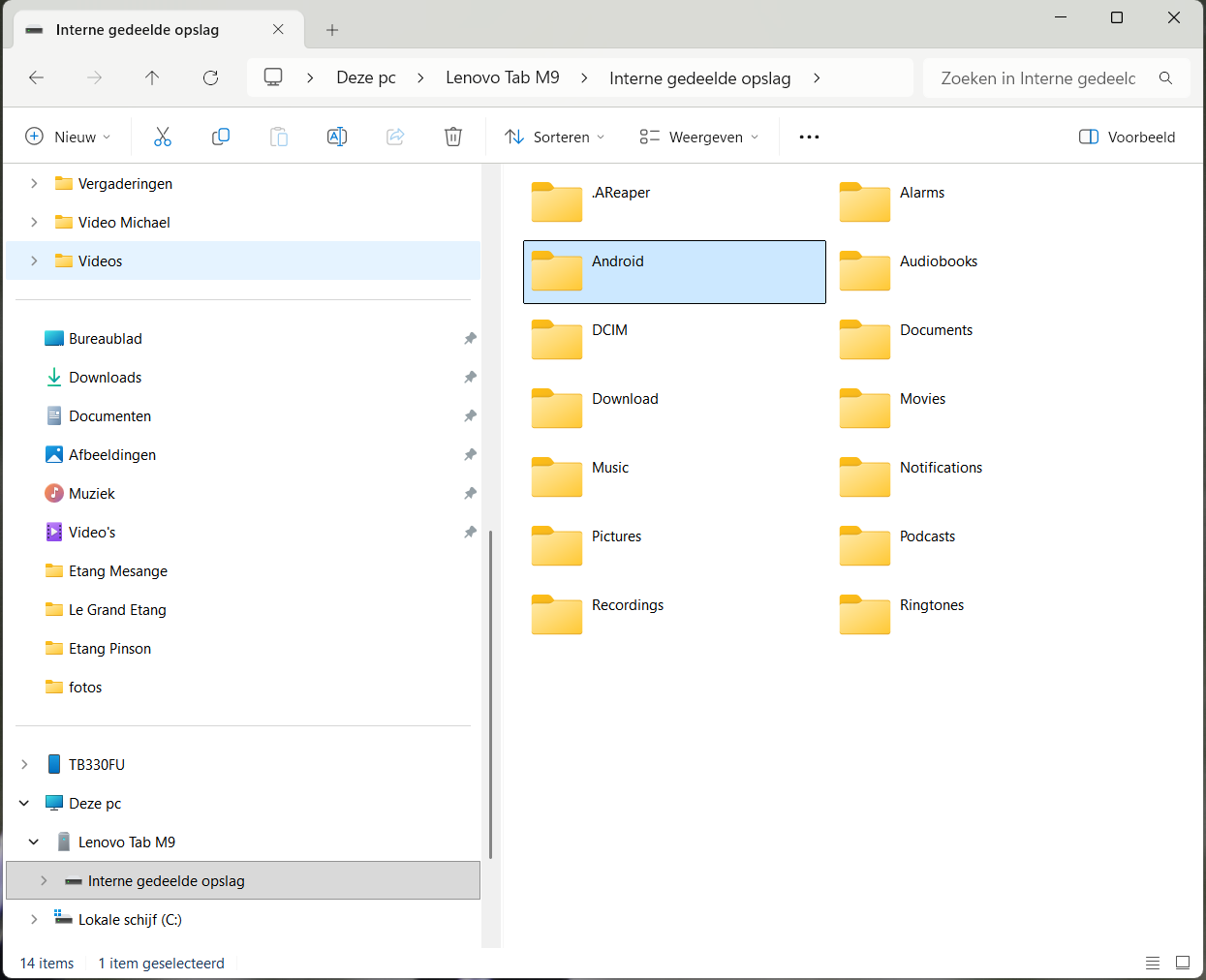
3. Locate the correct folder on your tablet Now that the connection has been established, we will look for the folder where the depth maps are stored. Step 3 – Open the tablet in Windows Explorer Open Windows Explorer on your laptop. Your connected tablet will now appear among the available devices. Click on the tablet and then open: ‘Internal shared storage’ |
|
|
Step 4 – Open the Android folder Look for the folder in internal storage: Android |
 |
|
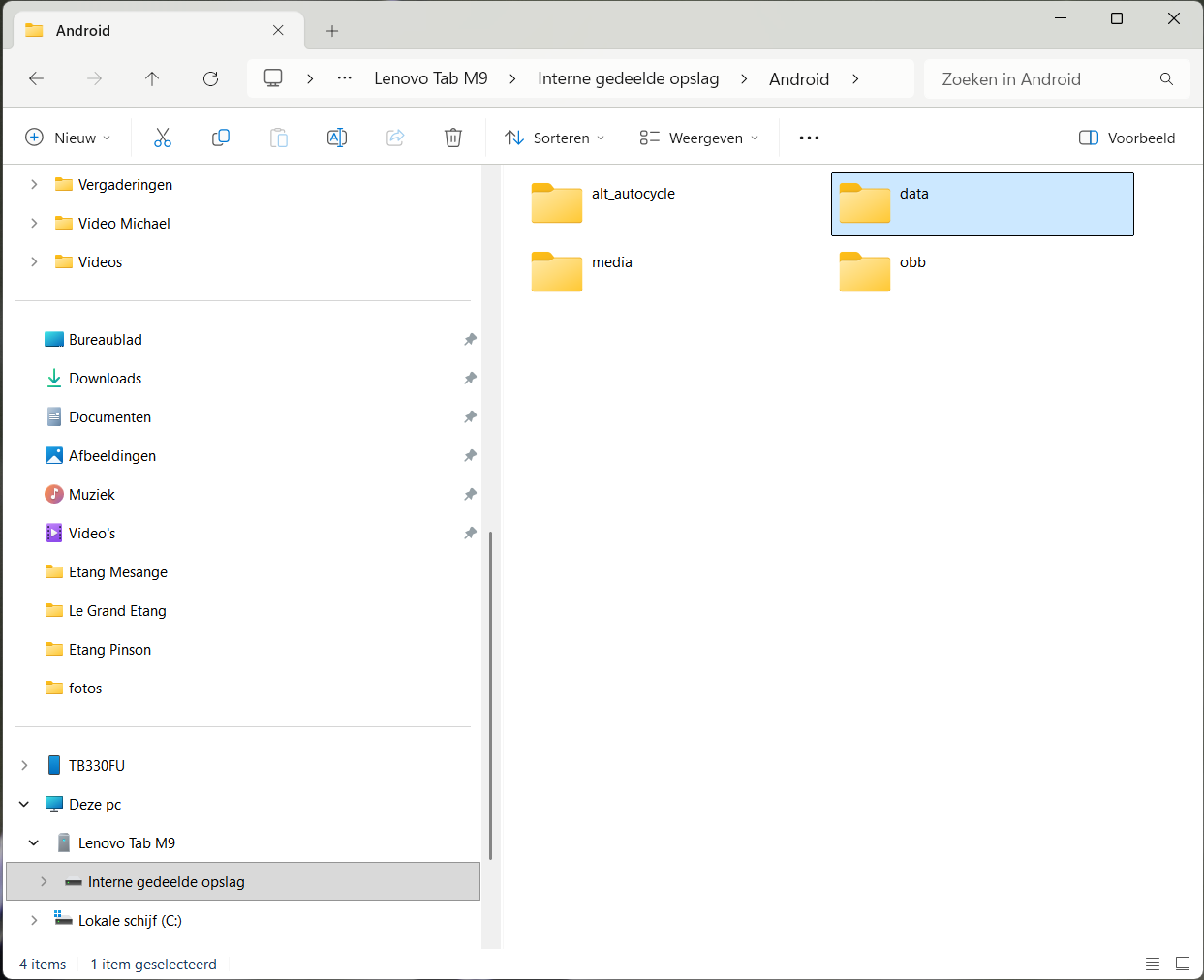 |
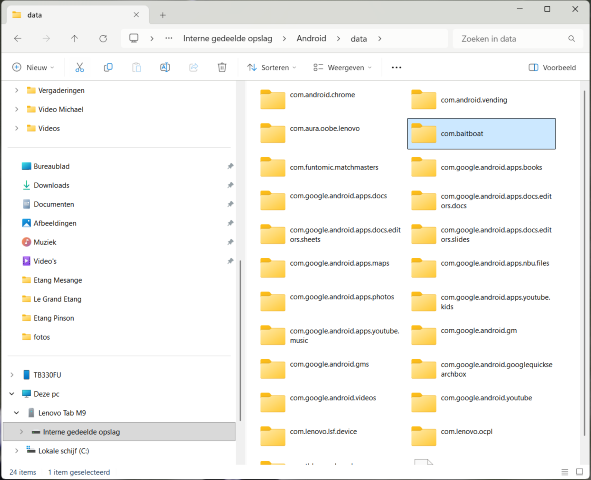
Open this folder and then go to: Data |
|
|
Important: Which software does your P.K. Baitboat use? There are different software versions for P.K. Baitboat. Depending on your model, depth charts are stored in a different location. In the Data folder, look for one of the following folders: Option A: “com.baitboat” Does your tablet have a folder named com.baitboat? Then follow the instructions in Chapter 4: Installation for BaitBoat software. Option B: “com.Carppilot.pro” Does your tablet have a folder named org.Carppilot.pro? Then go directly to Chapter 6: Installation for CarpPilot software. You therefore do not need to go through both installation methods. Simply choose the method that suits your tablet. |
 |
|
|
Installation Method A – BaitBoat software 4. Place your depth map in the correct folder Then you are in the right place! |
||
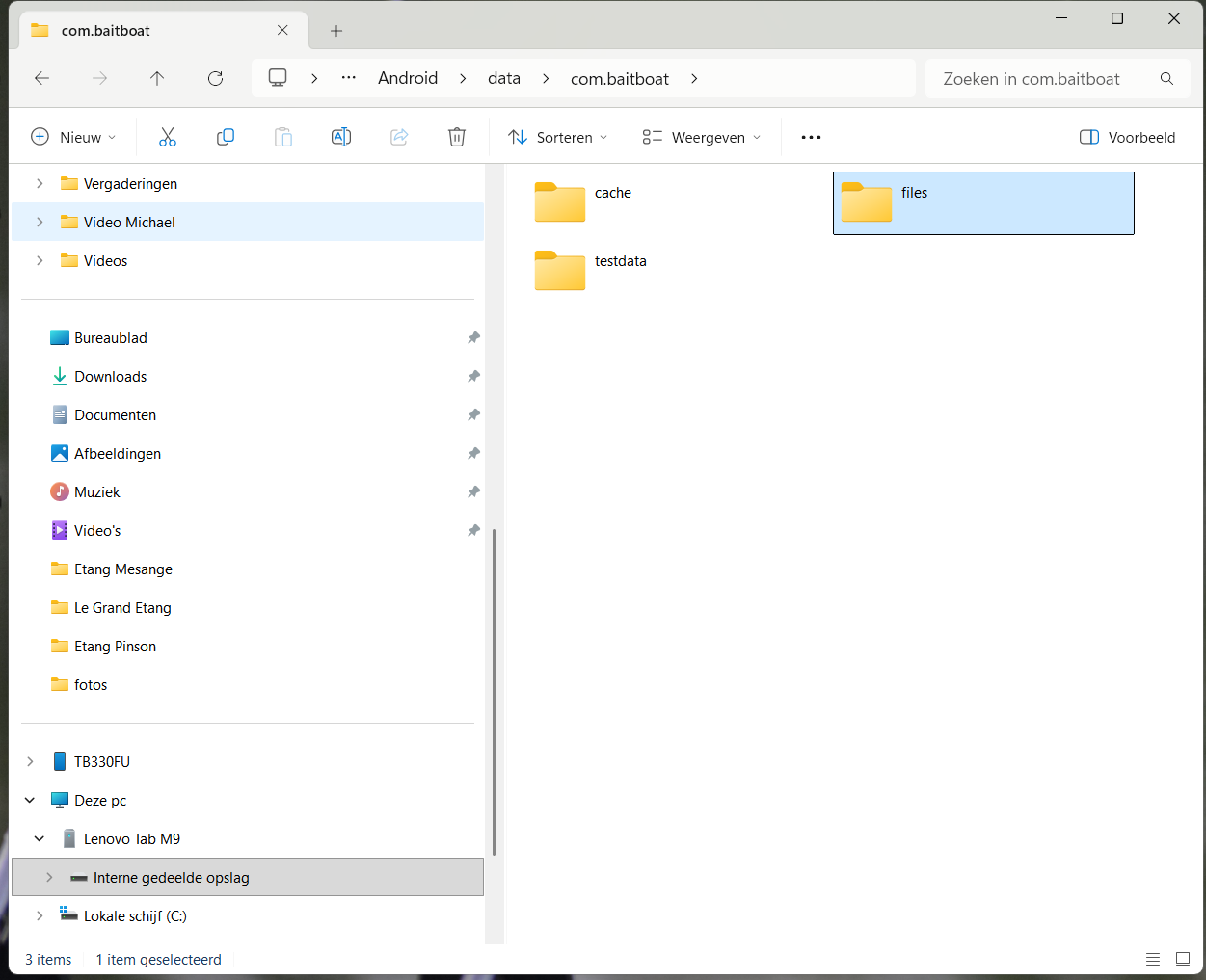 |
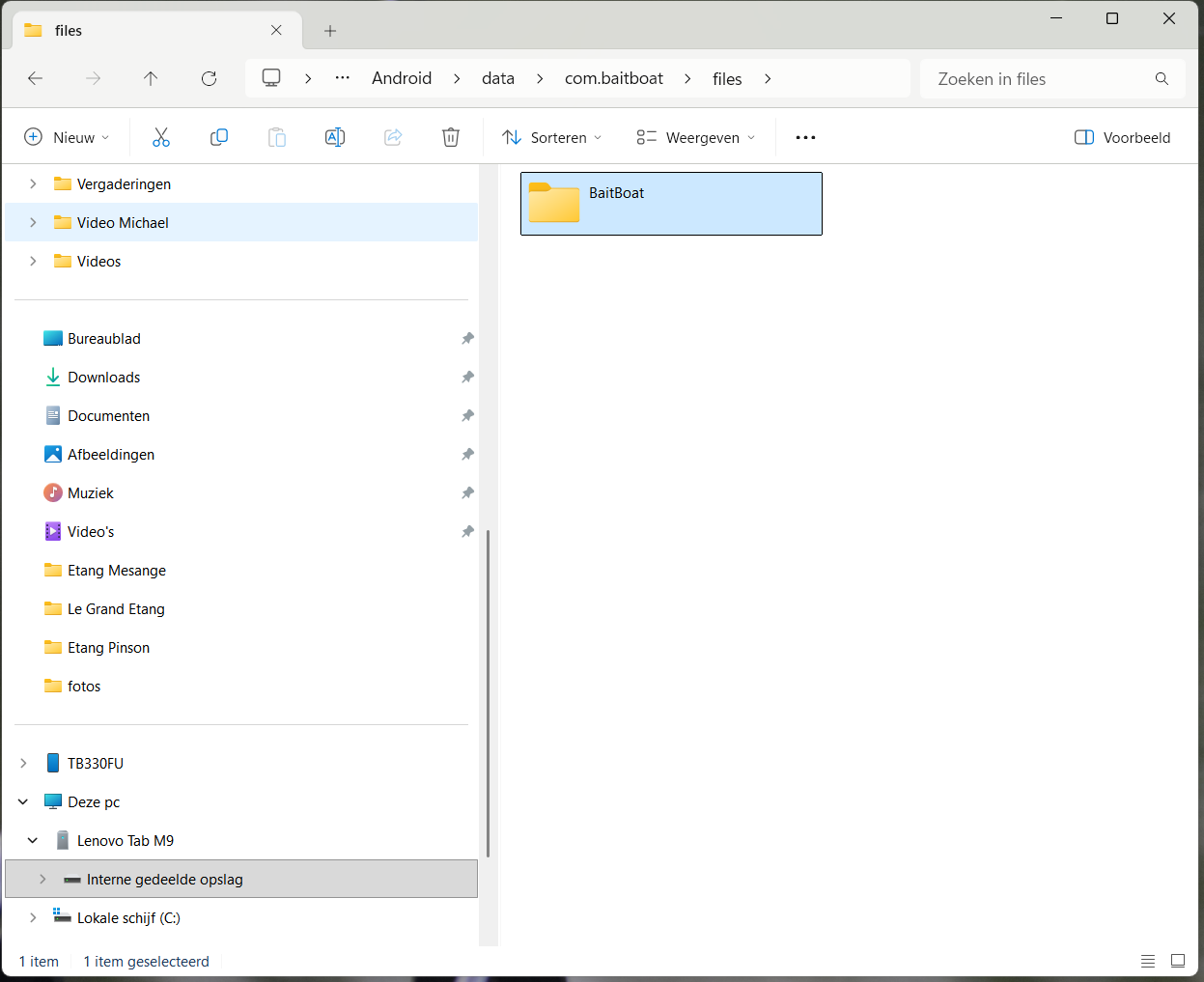
Step 5 – Open the Files folder Open the folder: com.baitboat Next, look for the folder: Files Open this folder |
|
|
Step 6 – Open the BaitBoat folder In the Files folder, you will find the folder: BaitBoat Open this folder. k |
 |
|
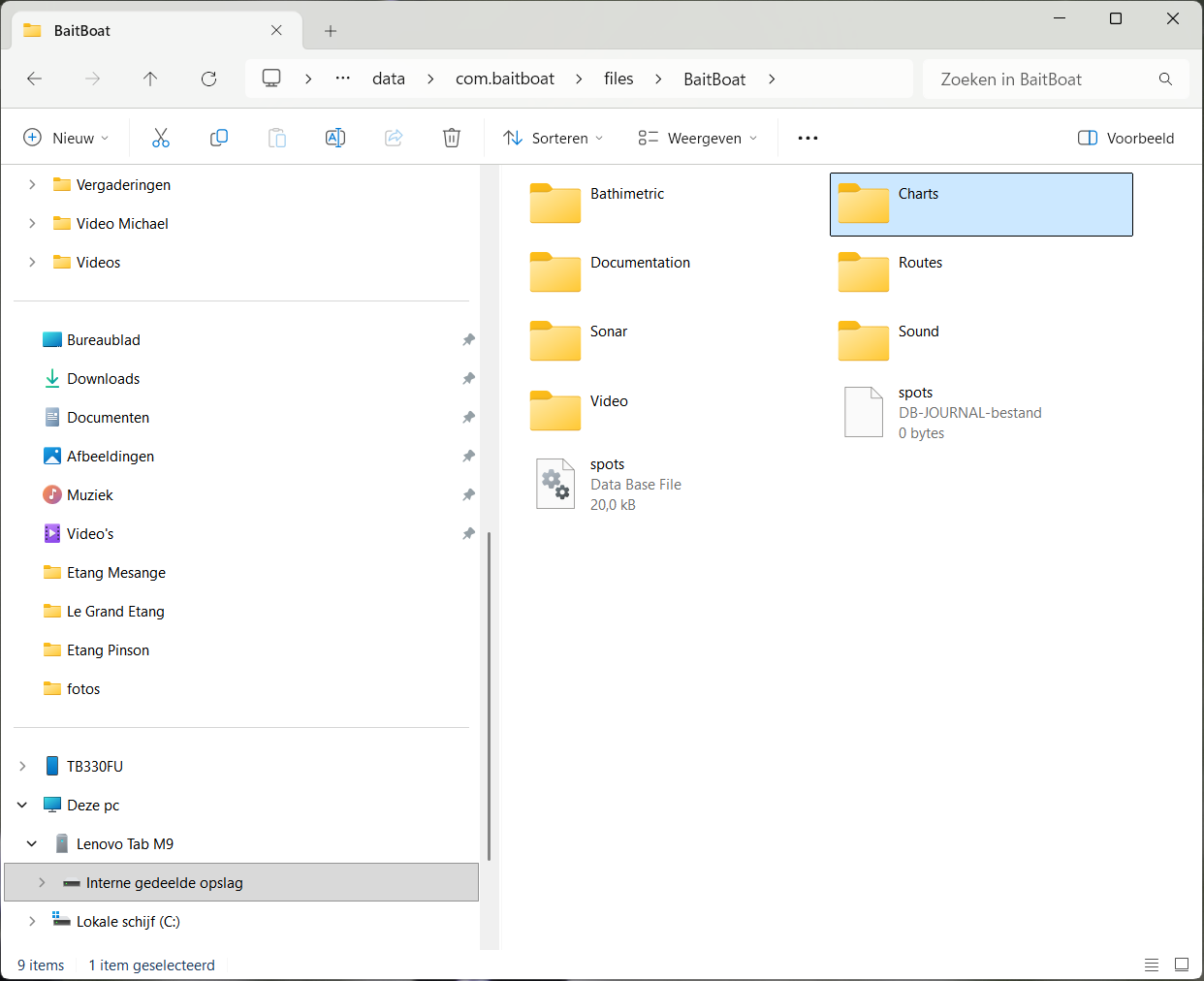 |
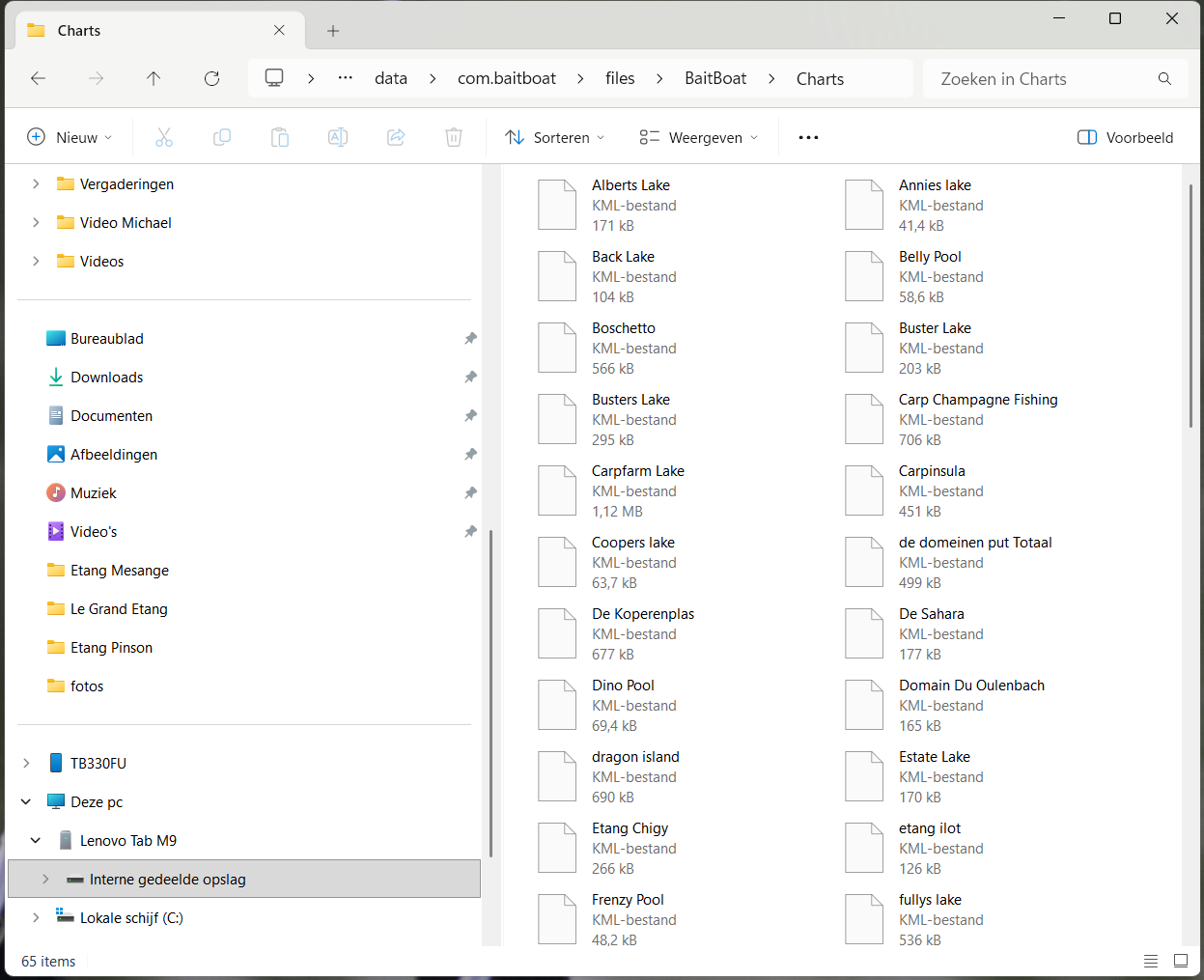
Step 7 – Locate the Charts folder Next, open the folder: Charts |
|
|
This is the location where your bait boat stores the depth maps. Depending on your situation, you will see an empty folder here or an overview of maps that have already been installed. |
 |
|
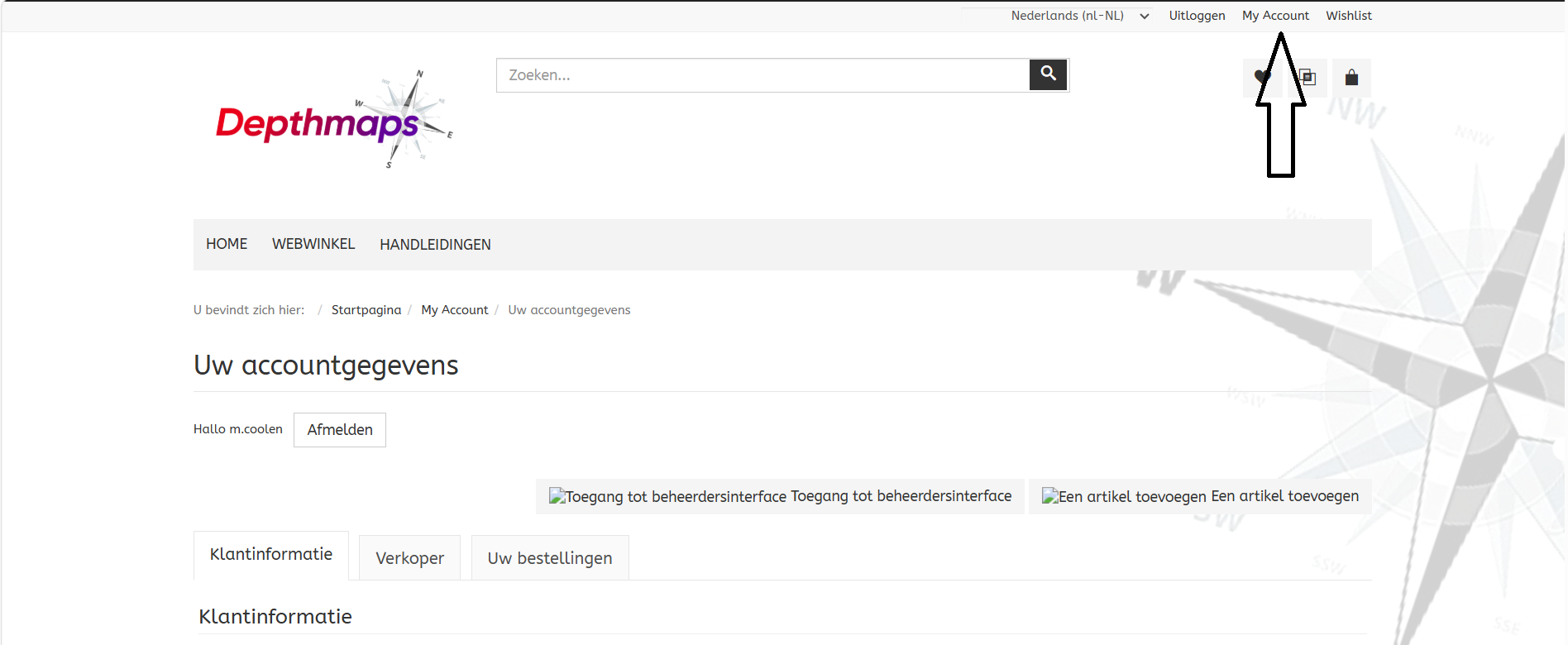 |
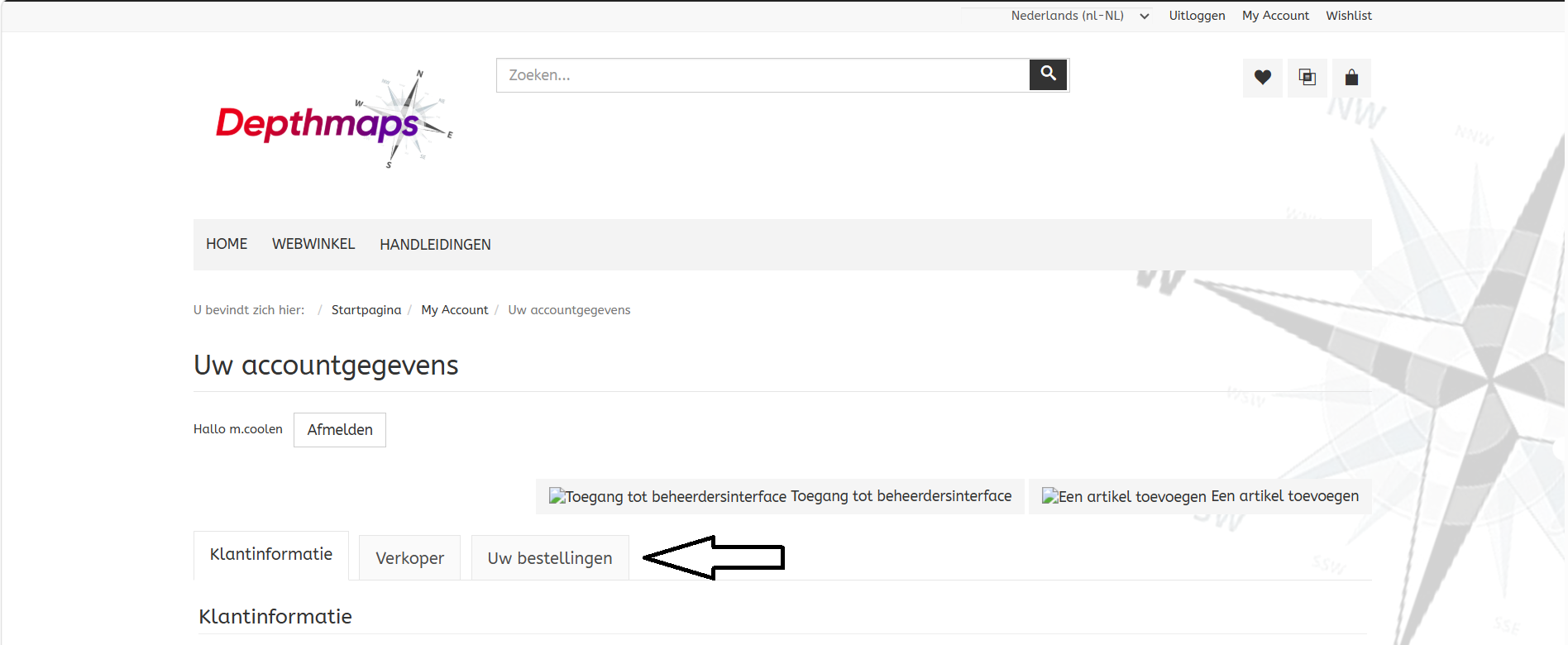
Step 8 – Download your map via Depthmaps Log in with your account and open the ‘My Account’ page. |
|
|
Here you will find the section: ‘Your orders’ |
 |
|
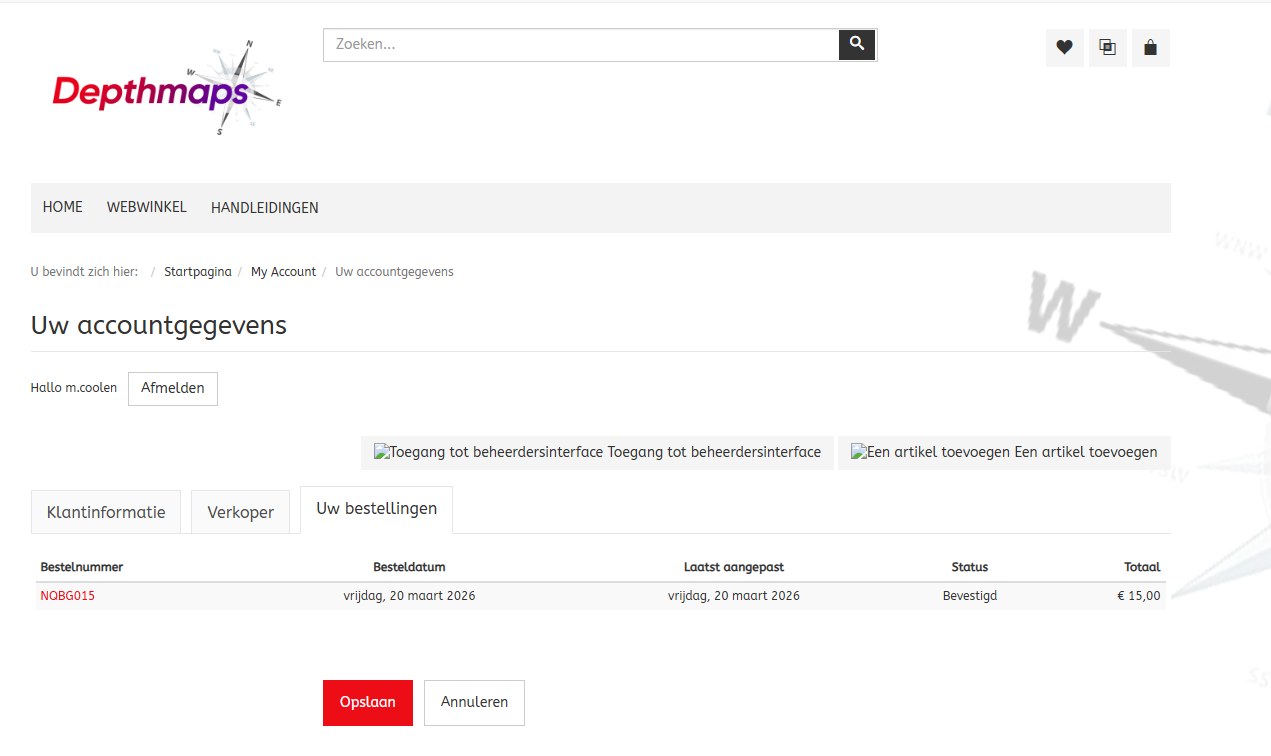 |
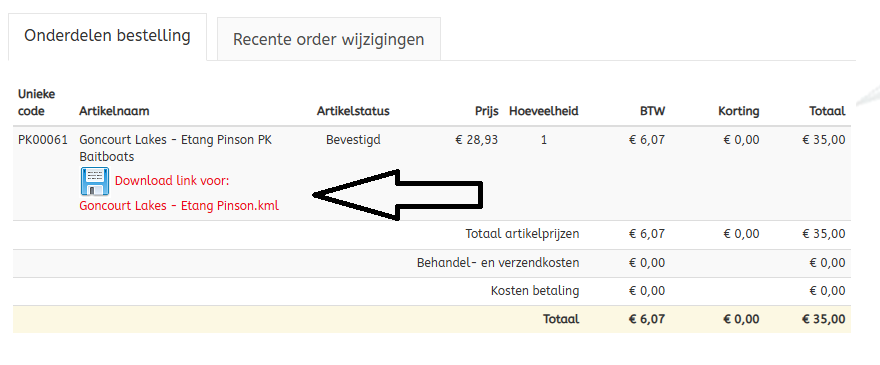
Find the depth map you purchased. | |
|
As soon as your payment has been processed and the download is available, you can download your card here. Click on the download option to save the file to your laptop. Click on the download option to save the file to your laptop. . |
 |
|
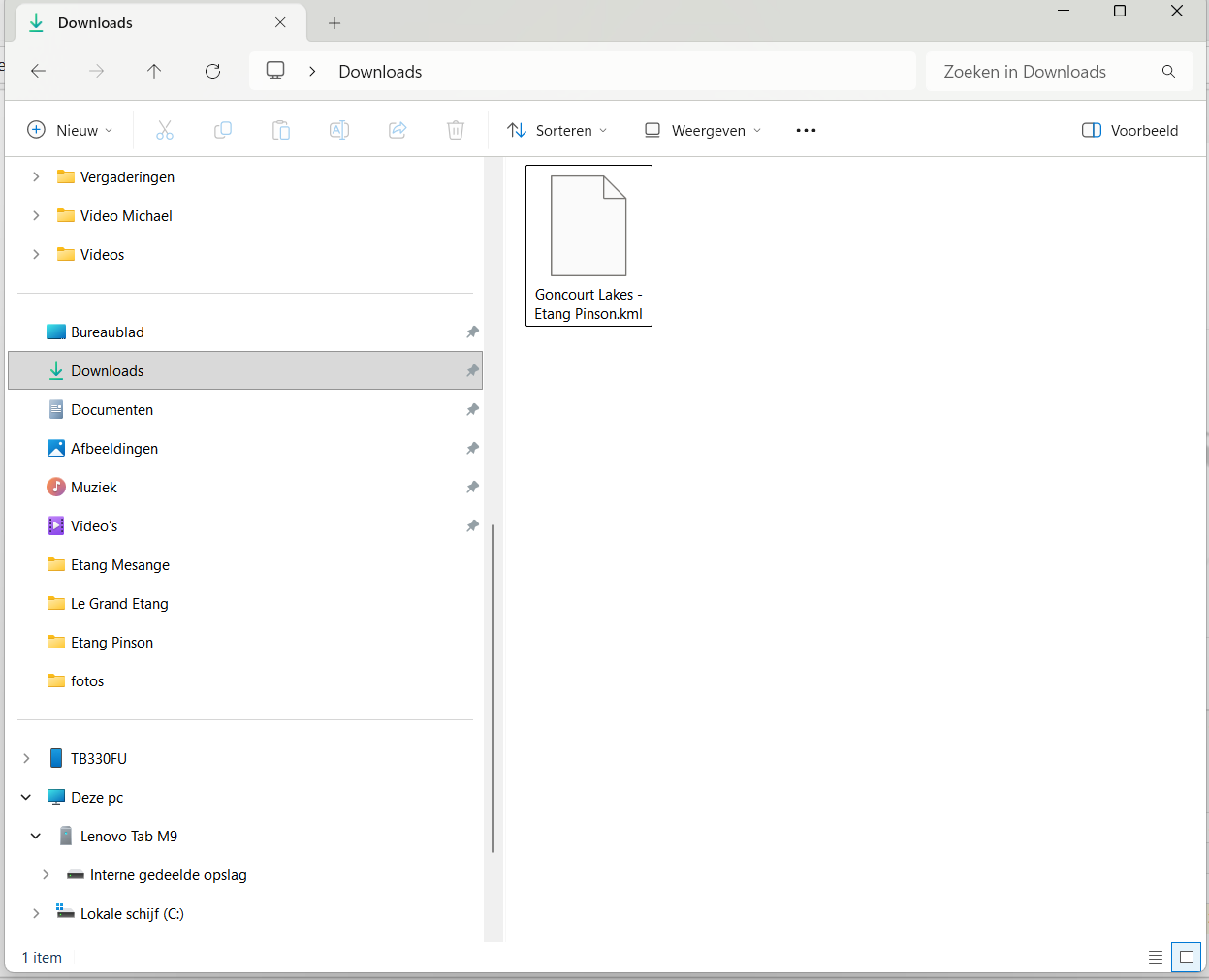 |
Step 9 – Copy the map to your tablet On your laptop, open Windows Explorer and go to the folder: Downloads |
|
|
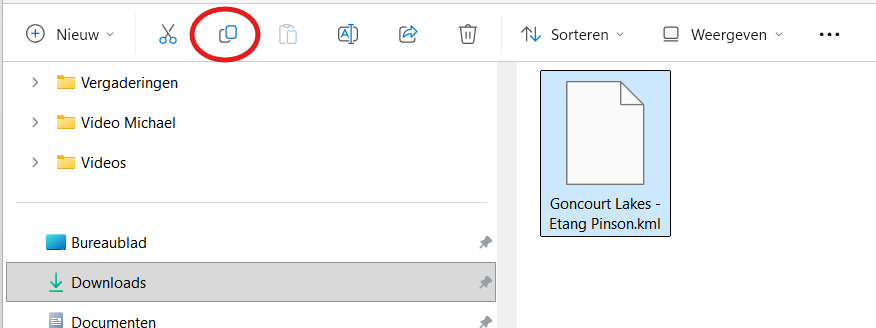
Here you will find the map file you just downloaded. Select the file and click on ‘Copy’ in the menu bar. You can also use the keyboard shortcut Ctrl + C for this. . |
 |
|
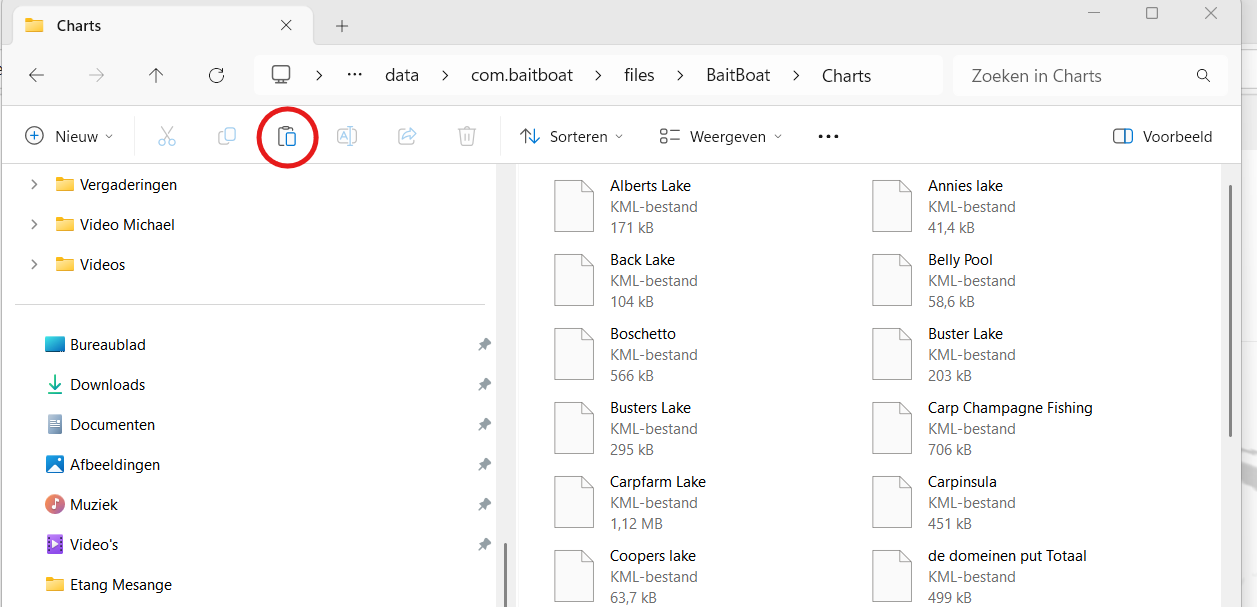 |
Next, go back to the baitboats charts folder. Paste the copied file into this folder using the ‘Paste’ button or the keyboard shortcut Ctrl + V. |
|
|
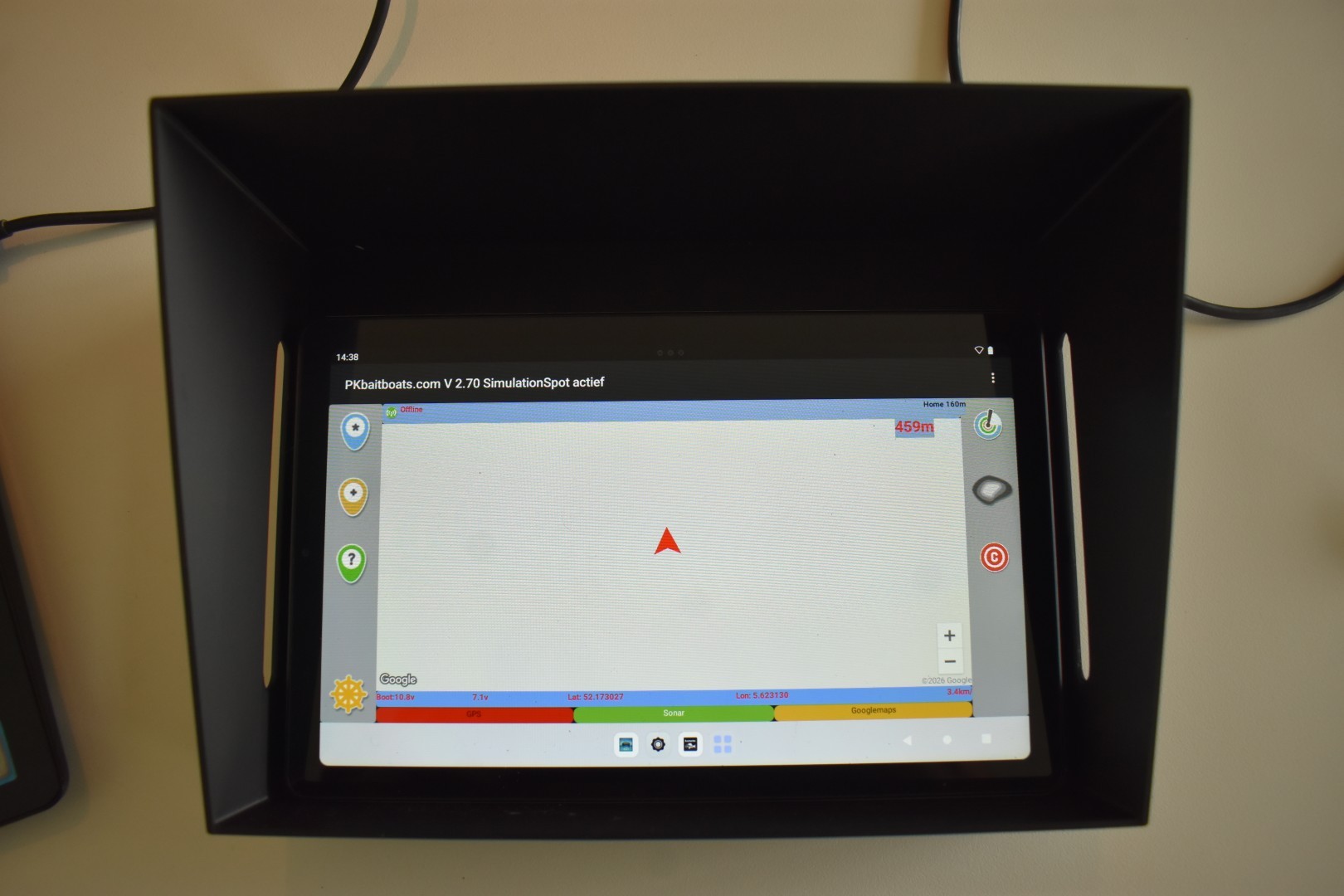
Step 10 – Open your map in the BaitBoat software Next, open the BaitBoat software on your tablet. . |
 |
|
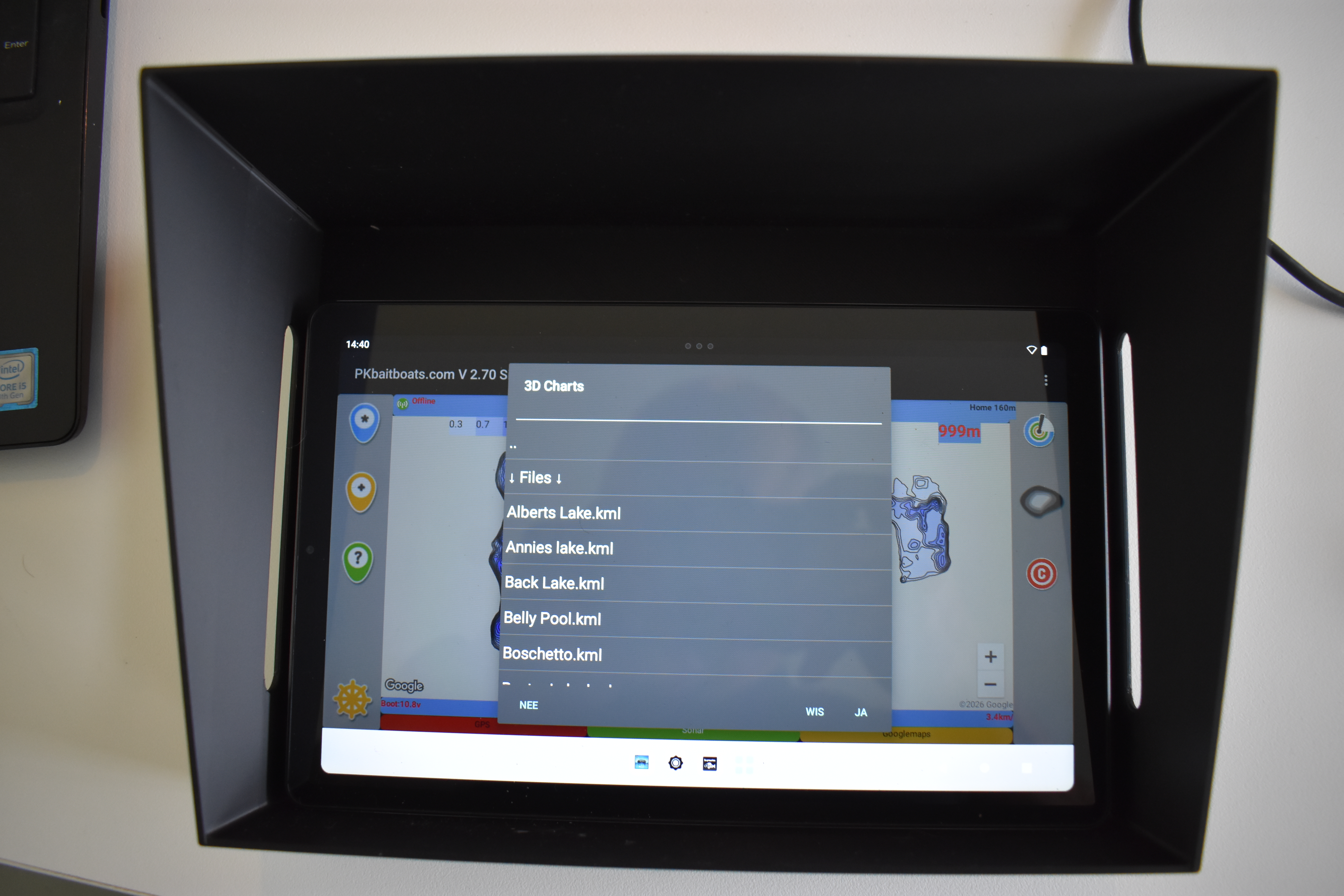 |
In the software, go to the option: ‘3D Charts’ An overview of the available depth charts will appear here. If everything went well, you will also see the chart you just installed. Select the desired chart and confirm your choice by clicking ‘Yes’. |
|
|
Congratulations! Your depth map is ready for use. Your new Depthmaps depth map is now available on your P.K. Baitboat tablet. This means that during your next fishing session, you can rely not only on what you see above the water but also have valuable information about the bottom contours. For example, see where shallow plateaus transition into deeper water, where interesting slopes are located, and which zones you want to explore further during your session. By combining the depth map with your own observations and experiences at the lake, you can continuously refine your choice of fishing spot. Have fun discovering your Carp lakes! |
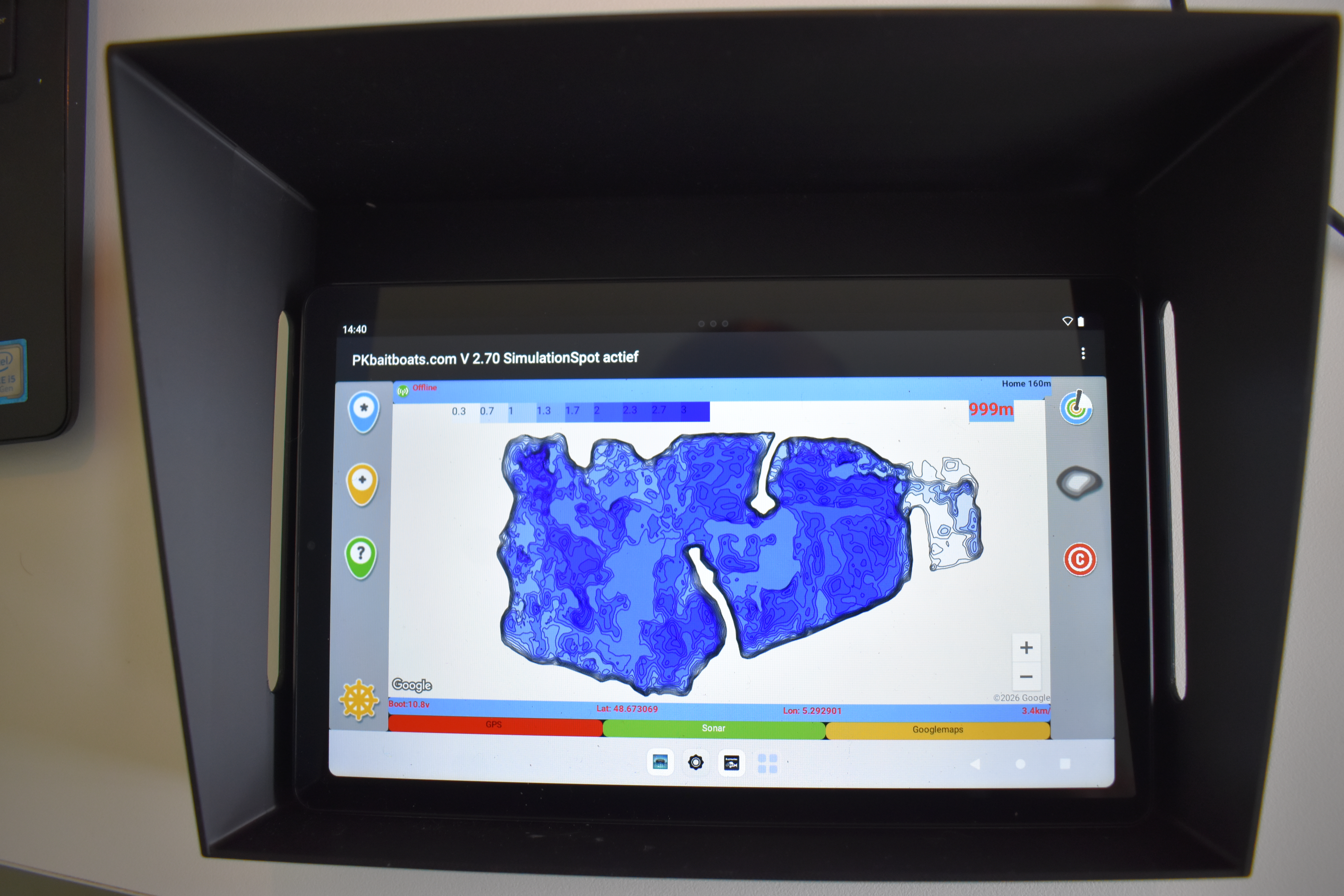 |
|
|
Installation Method B – CarpPilot software In that case, you can also use the depth maps from Depthmaps. The installation process is largely the same, but the storage location and opening the map are slightly different. We explain how it works below. |
||
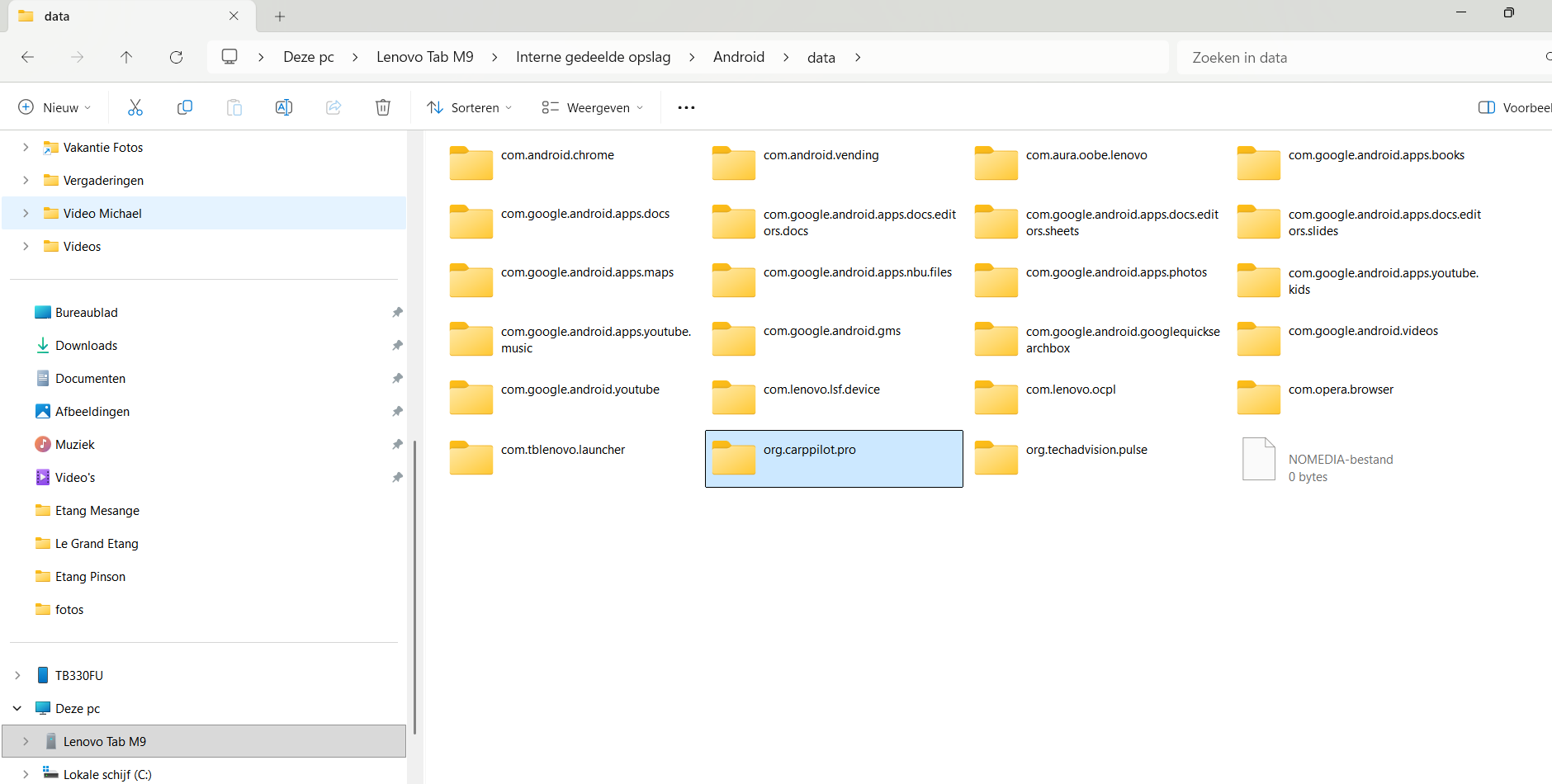 |
Step 1 – Open the correct software folder Connect your tablet to the laptop and enable file transfer, as described in Chapter 2. Next, open your tablet's internal storage via Windows Explorer. Go to: Android > Data Locate the folder: org.carppilot.pro Open this folder. |
|
|
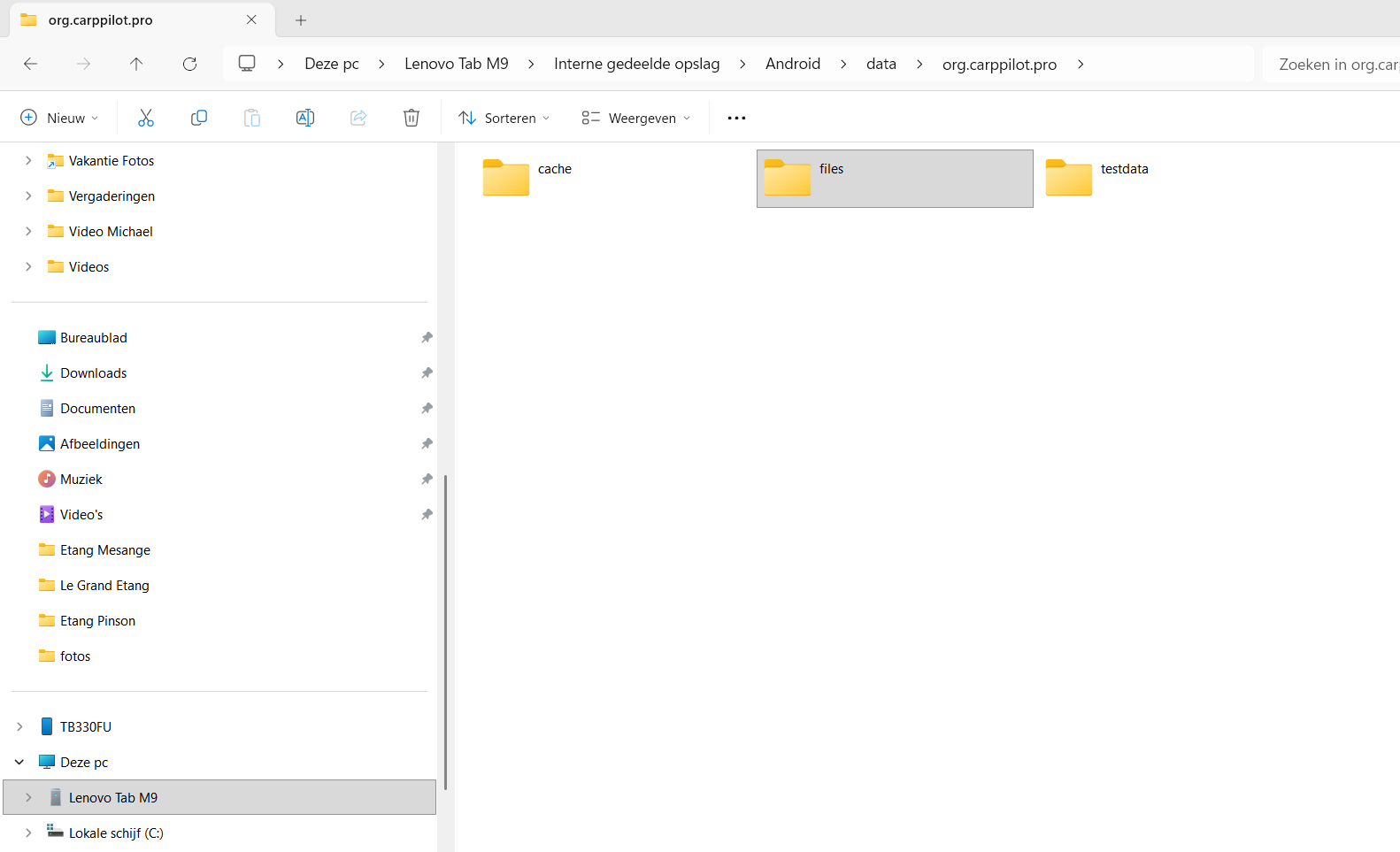
Step 2 – Open the Files folder Files |
 |
|
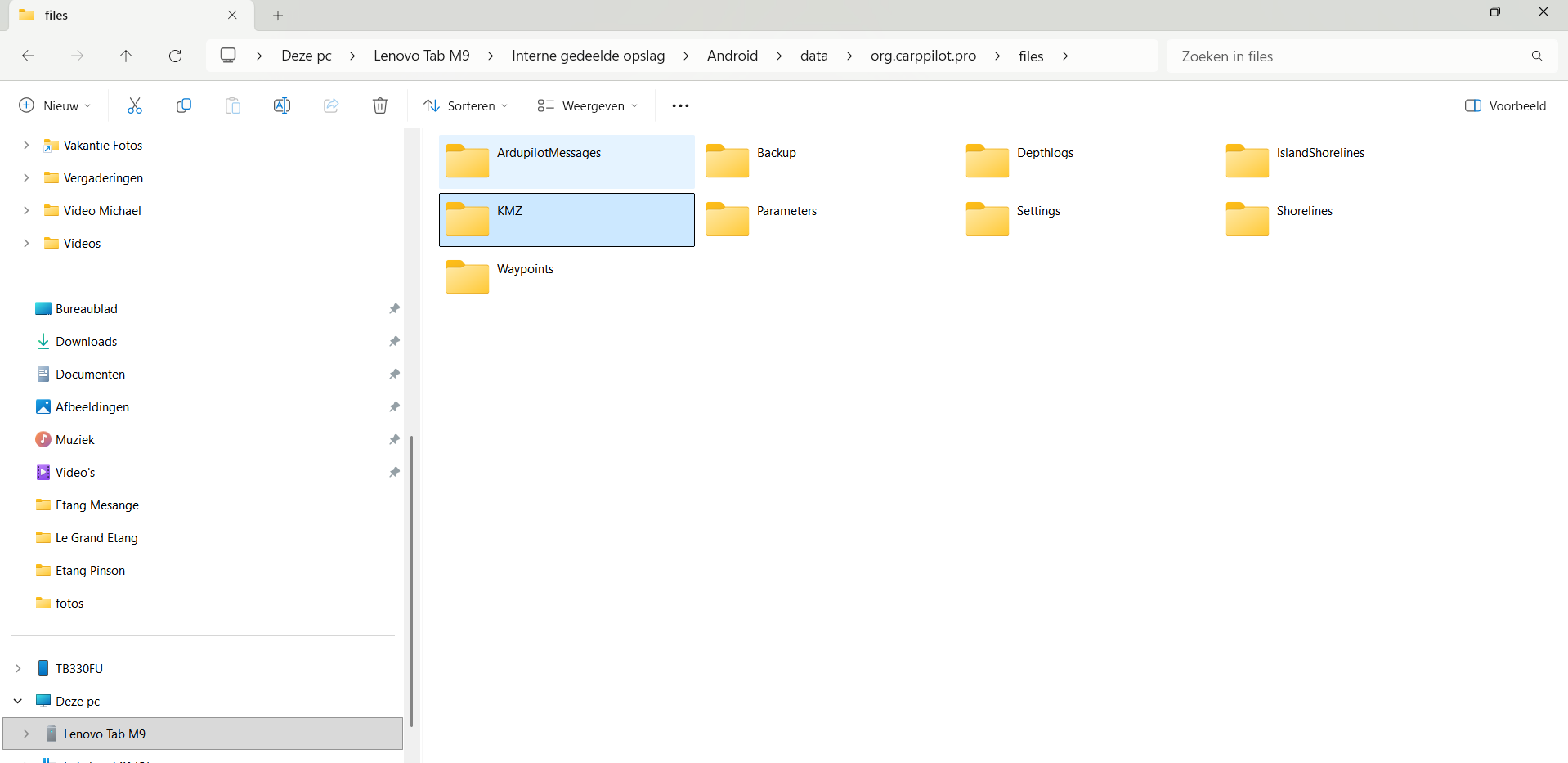 |
Step 3 – Locate the KMZ folder KMZ |
|
|
This is the location where CarpPilot stores the relevant map files. This folder may still be empty. If you have previously installed maps, you will see the files present here. |
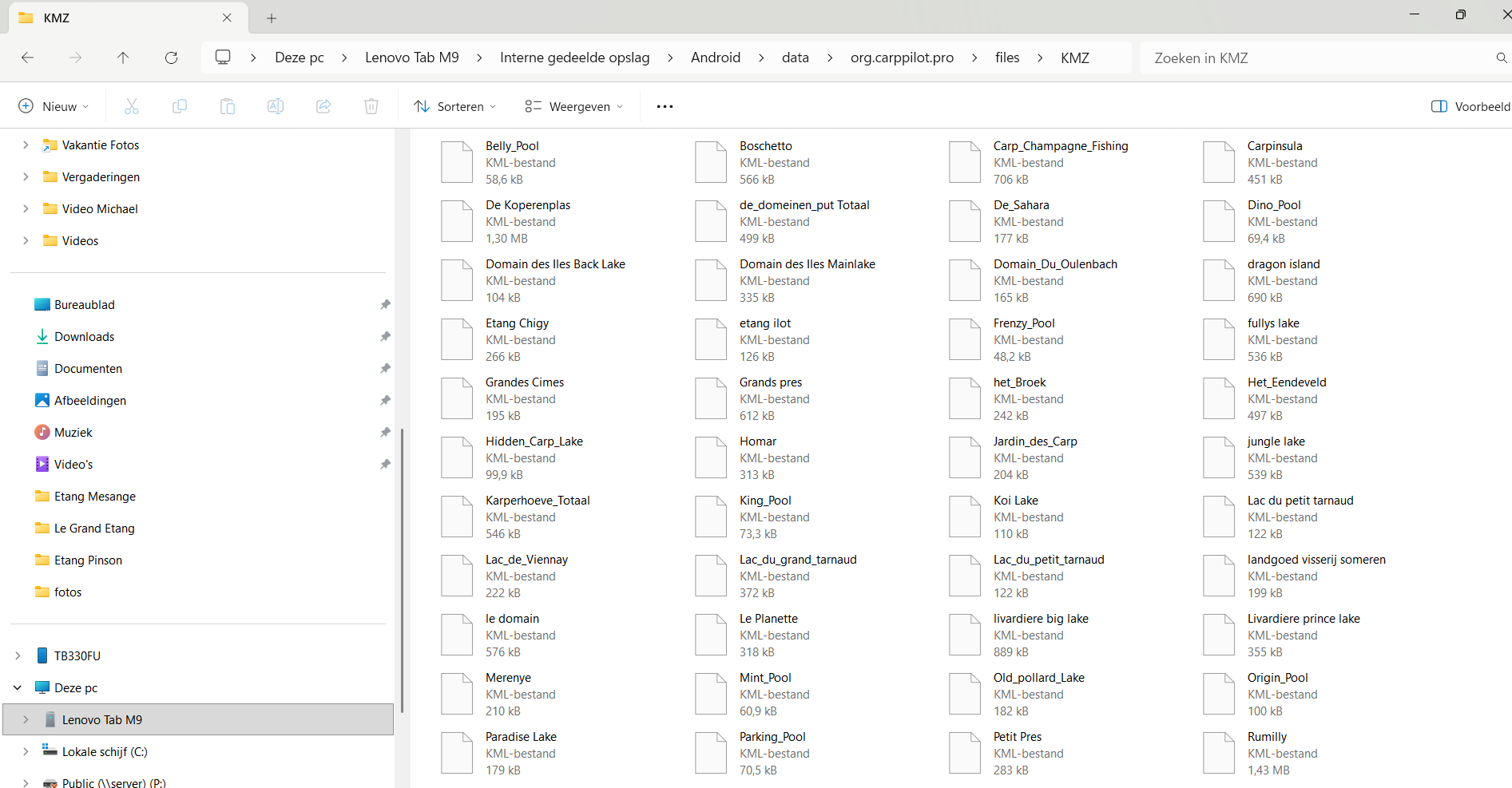 |
|
|
Step 8 – Download your map via Depthmaps Log in with your account and open the ‘My Account’ page |
|
|
Here you will find the section: ‘Your orders’ |
|
|
|
Find the depth map you purchased. | |
|
As soon as your payment has been processed and the download is available, you can download your card here. Click on the download option to save the file to your laptop. Click on the download option to save the file to your laptop. |
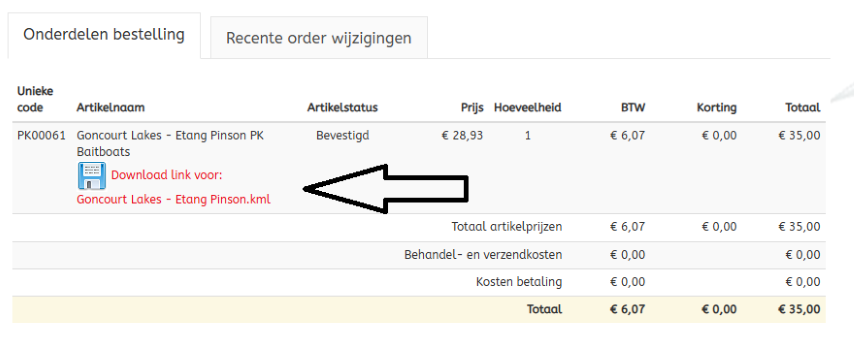 |
|
|
Step 9 – Copy the map to your tablet On your laptop, open Windows Explorer and go to the folder: Downloads |
|
|
Here you will find the map file you just downloaded. Select the file and click on ‘Copy’ in the menu bar. You can also use the keyboard shortcut Ctrl + C for this |
|
|
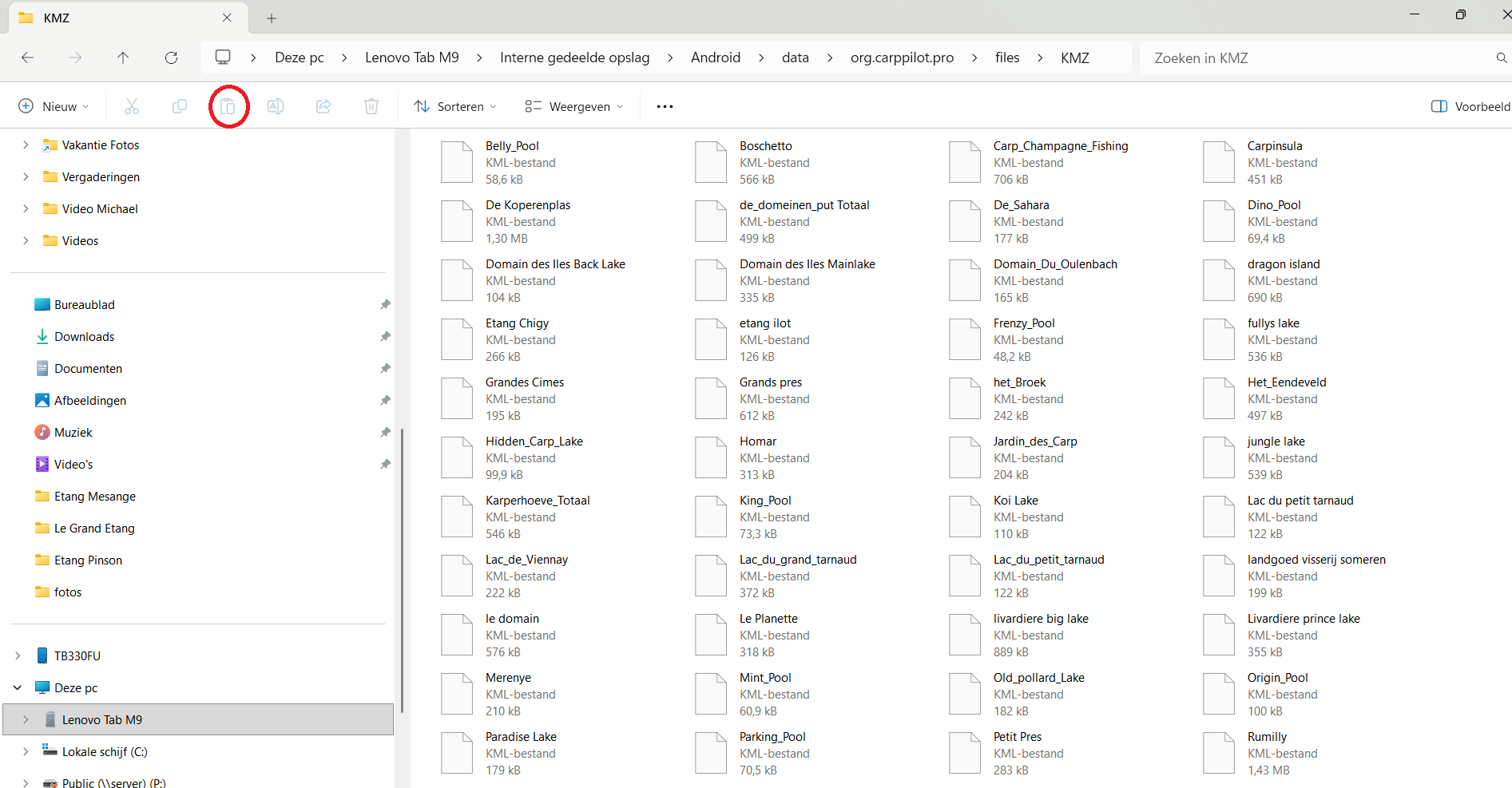 |
Next, go back to the Carppilot charts folder. Paste the copied file into this folder using the ‘Paste’ button or the keyboard shortcut Ctrl + V. |
|
|
8. Open your depth map in CarpPilot Next, start the application on the tablet: Pilot |
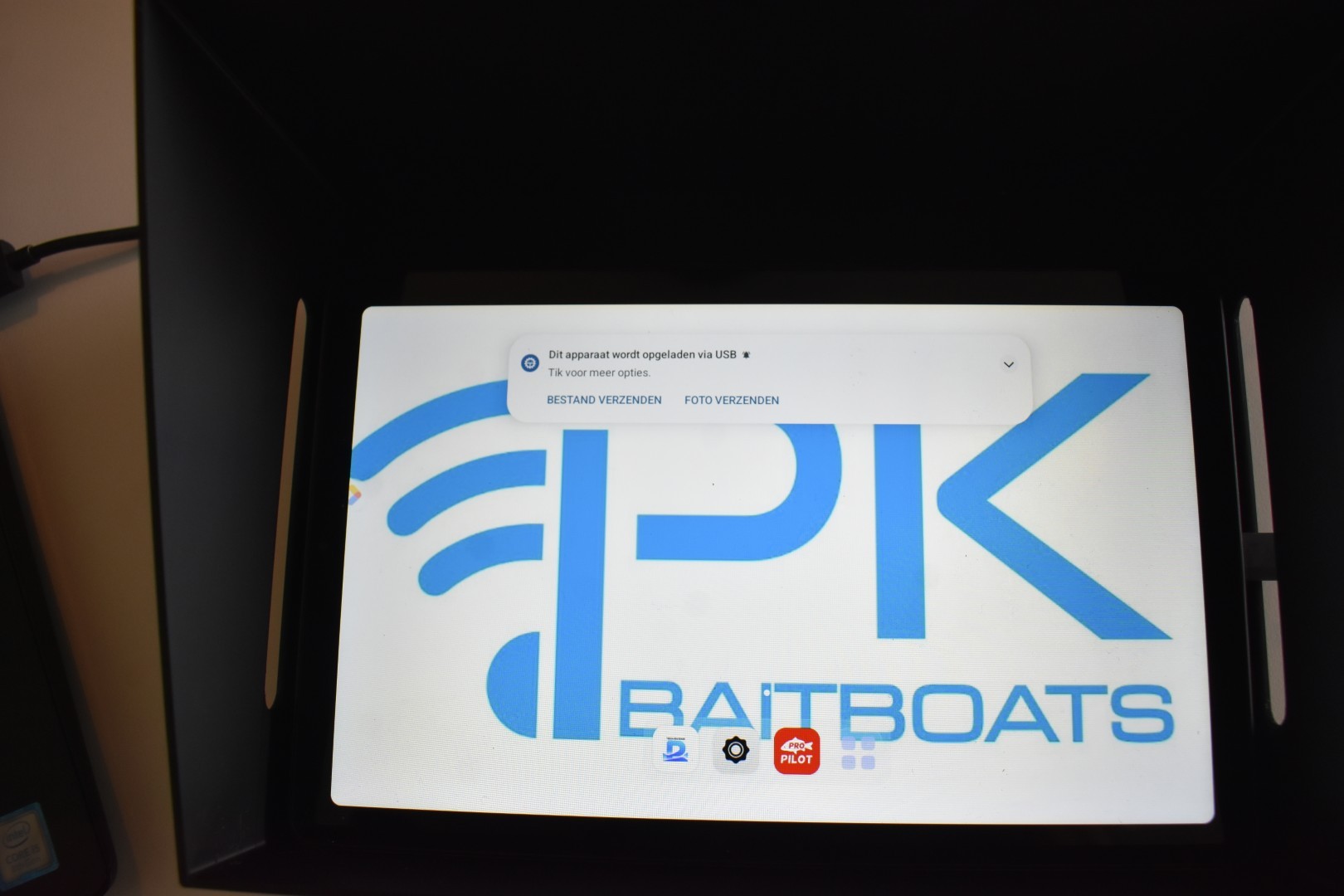 |
|
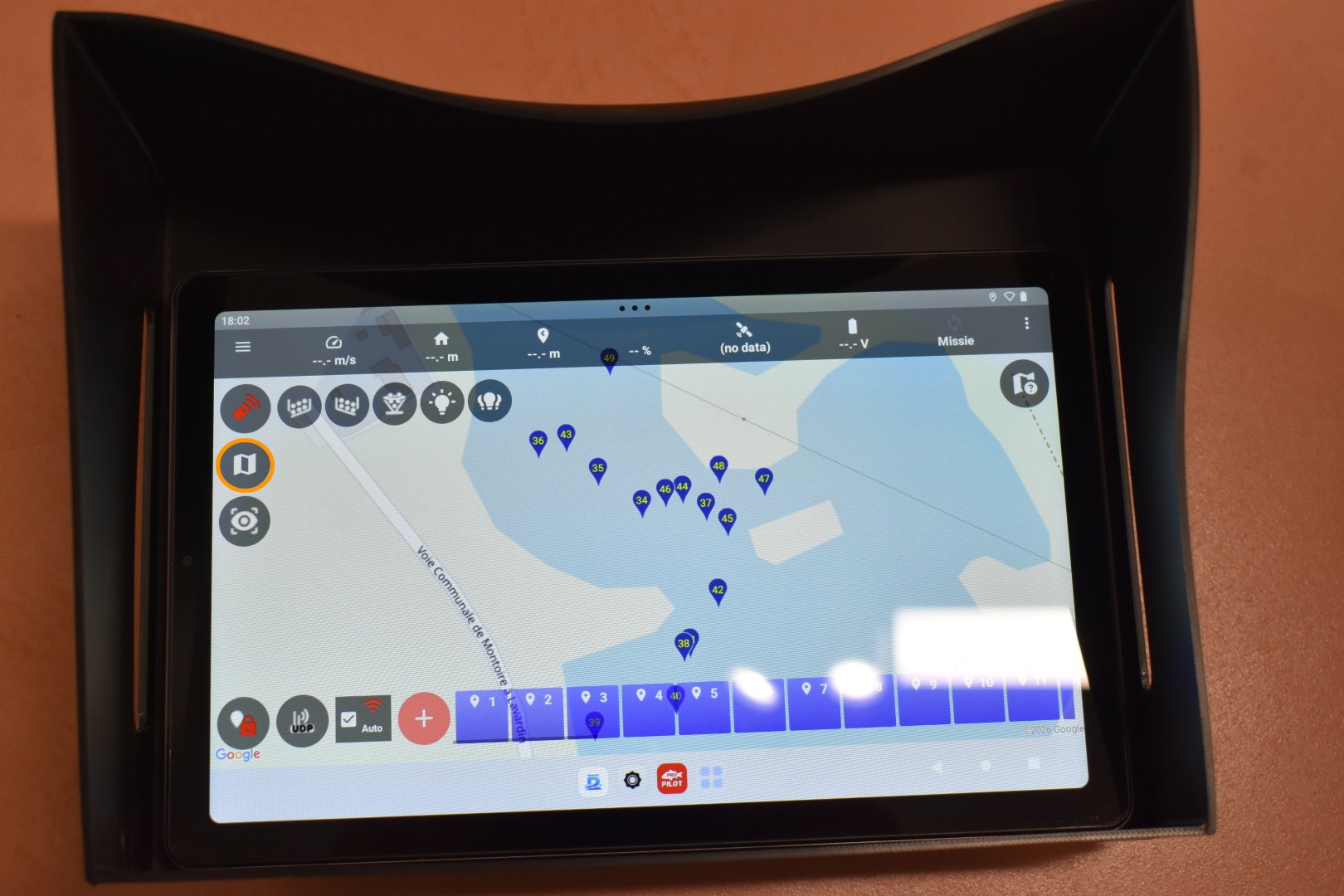 |
On the left side of the screen, you will see various icons. Tap the middle icon on the left. In the accompanying image, this icon is indicated with an orange circle. |
|
|
Additional icons now appear. Select the middle icon of the expanded options again. This is also indicated in the image with an orange circle. |
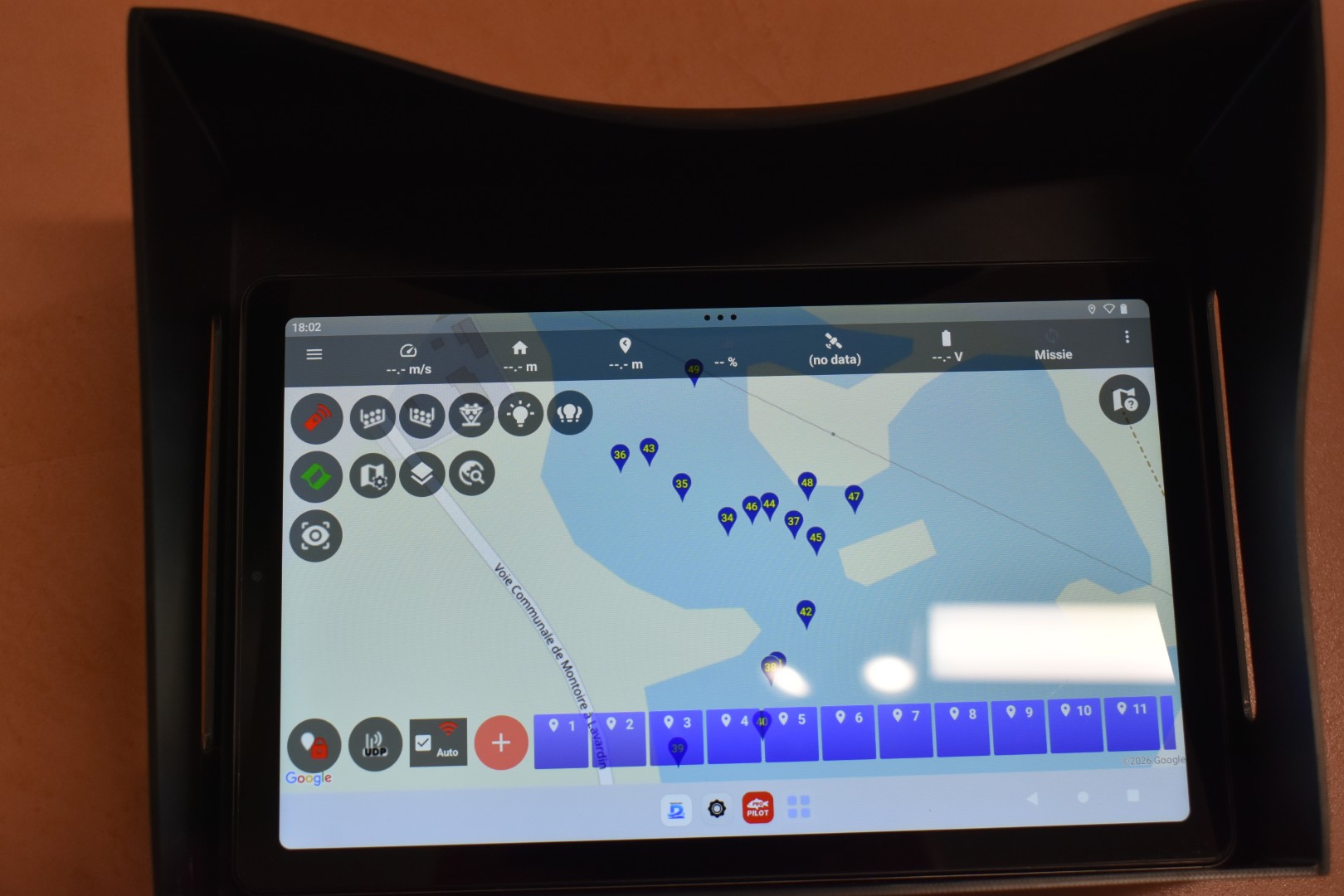 |
|
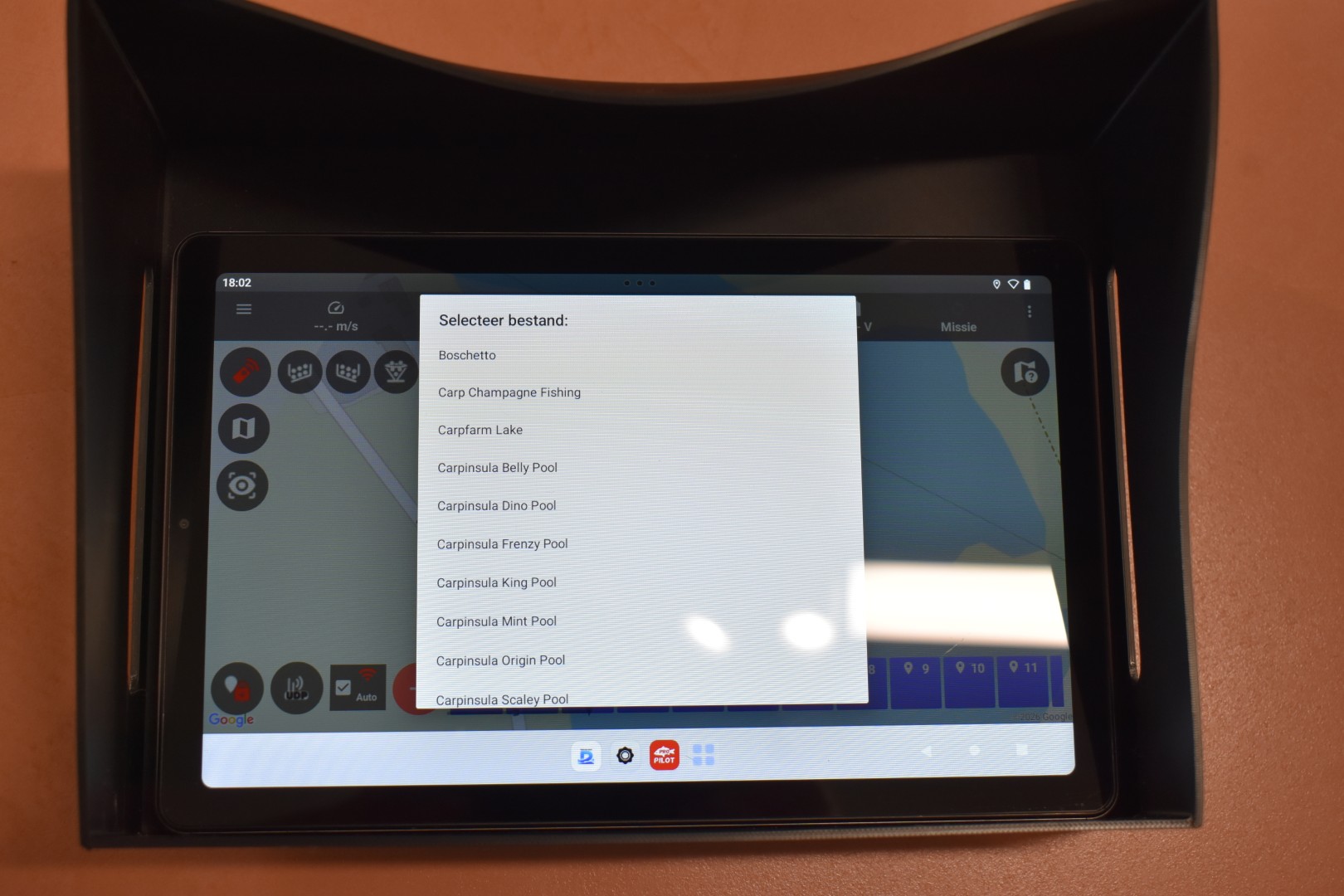 |
Step 9 – Select your depth map You will now see an overview of the available maps on your tablet. Find the depth map you just added and select it. The map will then open in the Pilot software. |
|
|
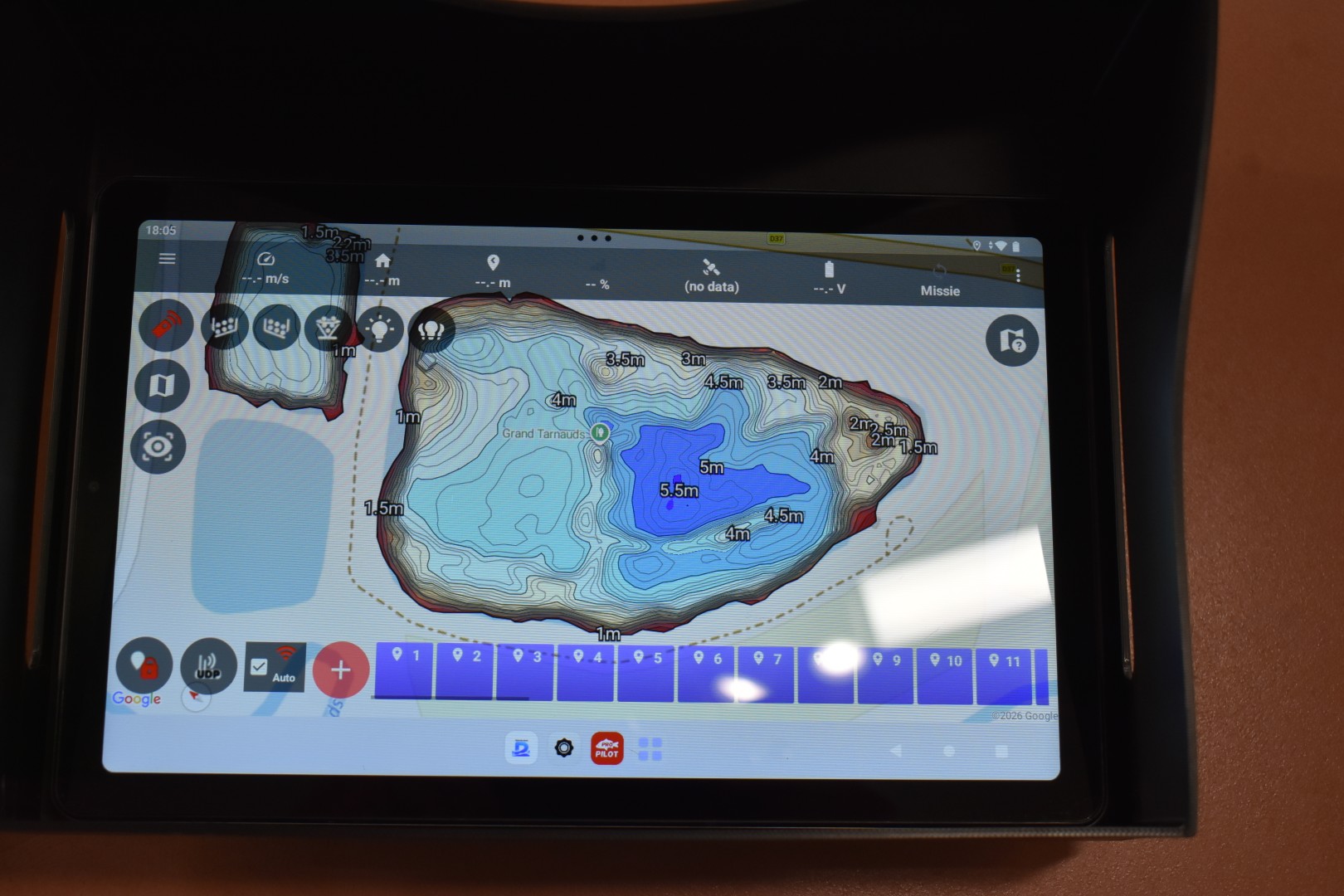
Your depth map is now installed and available in CarpPilot. You can use the map to get to know the bottom contours of your fishing water better and identify areas of interest. This way, you head out onto the lake with more information and a clearer plan. |
 |
|
9. What can you do with your new depth map?
Now that your depth map is on the tablet, perhaps the most enjoyable part begins: exploring the lake!
A detailed depth map offers much more than just an overview of the water depth.
Discover interesting depth variations
Carp regularly make use of different depths and underwater structures. Think, for example, of slopes, plateaus, and transitions between shallow and deeper sections.
With a depth map, you can more easily identify such spots and determine which zones you want to investigate further.
Prepare your fishing session better
Are you going to a new carp lake soon?
Then it is nice to get an idea of the bottom contours in advance. Where are the deeper sections located? Are there any striking plateaus? And which zones seem interesting for the season in which you will be fishing?
By studying your map beforehand, you can start your session more strategically.
Deploy your bait boat more consciously
With the depth map on your tablet, you have information about the bottom contours immediately at hand. This helps you find interesting zones and deploy your bait boat more effectively.
The exact capabilities for navigation and saving or controlling positions depend on your bait boat and the software used.
Get to know your favorite lake better and better
Even on a water where you have fished before, a depth map can provide surprising insights.
You might discover an interesting depth difference that you hadn't noticed before, or get a better idea of the location of a plateau where you regularly catch fish.
By combining the map with your own experiences, observations, and catch data, you build up more and more knowledge about your favorite fishing water.
Of course, a depth map doesn't tell you exactly where the carp are located. But it does provide you with valuable information to search more specifically for promising spots.
And that is precisely what makes carp fishing so interesting!
10. Frequently Asked Questions
My tablet doesn't appear on my laptop. What now?
First, check that both devices are switched on and the USB-C cable is properly connected. Next, check on your tablet if the USB setting is set to ‘File transfer’.
Not every USB-C cable supports data transfer. Some cables are intended exclusively for charging devices. Therefore, you may want to try a different cable.
I do not see the com.baitboat folder. What should I do?
Your P.K. Baitboat may be using a different software version.
Check if you can find the org.carppilot.pro folder.
Is that the case? Then follow the instructions for CarpPilot in chapter 6.
I cannot open the Android/Data folder.
With some Android versions, access to certain system folders is restricted.
First, check if file transfer is enabled correctly.
Does the folder remain inaccessible? Then contact your bait boat supplier to find out which transfer method is supported for your tablet.
My downloaded map does not appear in the software.
Check if you have placed the file in the correct folder.
For BaitBoat, this is:
Android > Data > com.baitboat > Files > BaitBoat > Charts
For CarpPilot, this is:
Android > Data > org.carppilot.pro > Files > KMZ
Also check if the map file has been copied completely and is compatible with your bait boat's software version.
If necessary, completely close the application and restart it.
Can I install multiple depth maps?
If your software supports multiple map files, you can save different maps in the relevant folder.
This way, you have maps of multiple fishing waters at hand.
Whether you can switch between these maps and how many maps you can store depends on the software version and the available storage space.
Do I have to reinstall the map every time?
No. Once the map is correctly installed on your tablet, it normally remains available.
Therefore, you do not need to perform the installation again for every fishing session. With a new tablet, file deletions, or certain software changes, it may be necessary to reinstall the map.
Head to the waterside well-prepared!
At Depthmaps, we believe that a good understanding of the water contributes to a more enjoyable and conscious fishing experience.
For the better you understand the bottom contours, the more targeted you can search for interesting spots and the more you can get out of your available fishing time.
With your new depth map, you have a valuable tool at your disposal for this purpose.
Take the time at home to review your map, discover striking depth differences, and consider which zones you want to explore during your next session.
The map shows you the way underwater. The rest is up to you!
On behalf of Depthmaps, we wish you a lot of fun with your new depth map, wonderful moments at the waterside, and of course, great catches!
Team Depthmaps